
Watching
Timeshift, catch-up and recordings
Understand the local rewind buffer, provider archives and recording destinations.
Applies to 0.77 development preview · English guide
Local Live TV buffer
Timeshift captures a bounded live buffer on the playback device. It allows pausing or rewinding within what has already been received. It does not create an unlimited recording archive.
Buffer duration and available storage affect how much can be retained. A different channel has a different playback session; its buffer cannot be treated as the previous channel's timeline.
- Enable local timeshift for a supported live source and choose its buffer limit in playback settings. The available history starts when that channel starts receiving data.
- Open the player controls and select Pause. The picture stays paused while the bounded local buffer can continue receiving the programme.
- Use the back or forward controls, or choose a position on the available timeline. You can only move within data already buffered.
- Select Live to return to the live end. The LIVE time offset shows how far behind that end you currently are.
- Select Stop when finished. Changing channel starts a separate buffer; it does not reuse the previous channel timeline.
- If the playback path has no seekable buffer, the timeline cannot rewind it. Provider catch-up is a separate feature described below.


Provider catch-up
Provider catch-up opens a past programme from the archive supported by that source. Availability, retention and supported channels are determined by the service, not by the local buffer duration.
The guide entry must have a usable archive capability. Missing archive metadata is not permission to promise catch-up.
Recordings and schedules
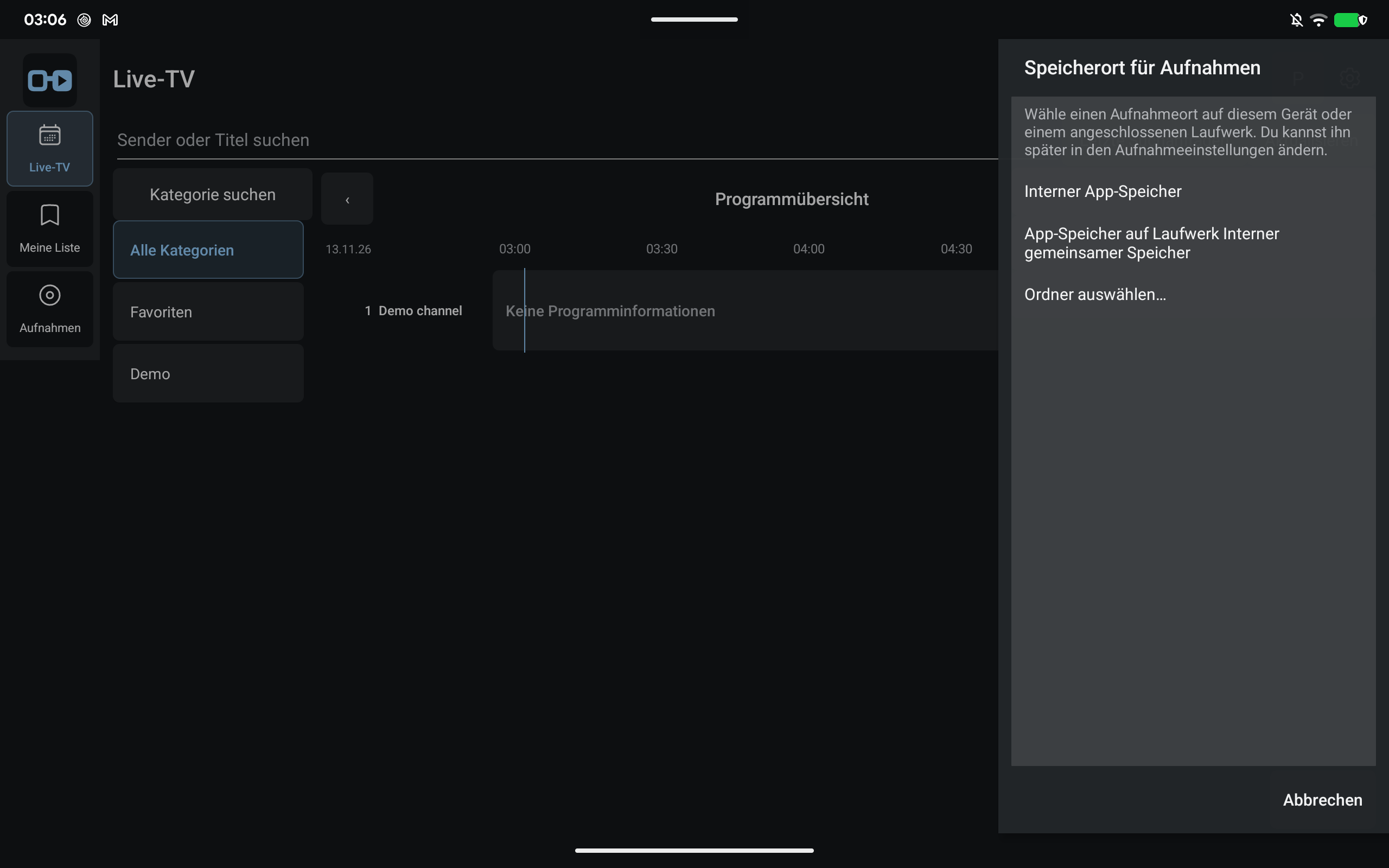
In the Android TV and touch apps, the first recording request opens setup if this device has no confirmed, usable destination. A playlist, Xtream or FRITZ!Box stream is recorded on the Android device; it does not provide a remote recording service by itself.
A Dispatcharr source can also offer recording on the server when its API and your account allow it. Dispatcharr then controls its own recording storage. A folder on your tablet or TV is not a folder on the server.
Scheduled recordings remain independent of ordinary source updates while the app is closed. Device storage, background execution rules and source availability still matter.
- Select Record or Schedule for the required channel or guide programme. If setup is needed, an administrator chooses a destination before confirming the recording.
- For a source with permitted server recording, choose This device or the named server. Otherwise continue directly to device storage. You can cancel without starting a recording or changing your previous destination.
- For This device, select internal storage, an available external storage location or Choose a folder. The last option opens Android's folder picker where available; grant access to the intended folder. The app checks that the target can be written to and has usable space.
- Confirm the destination. The original channel, programme and time are kept for the recording confirmation; review them and confirm once. Setup alone does not submit a recording.
- Open Recordings to find local recordings and recordings visible to this account on a supported server. Server recordings created outside TiviNerd can appear here too. Their presence does not make them personal recordings of the current profile.
- Select an available recording to play it. Finished recordings offer Resume when a position is saved, and Start from beginning. A running Dispatcharr recording can be played when its server playback output is available; once completed, playback moves to the finished file while retaining your paused state and position.
- Use a recording's confirmed Stop or Delete action only when your profile and server account permit it. Deleting a server recording affects that server's recording.
- If a selected drive is removed or Android revokes folder access, reconnect or select storage again. The app does not silently redirect that recording to internal storage. Detection of a particular physical USB device still depends on Android exposing it.
- A server that cannot be reached is an error, not an empty recording library. Reading the list does not create, stop or delete recordings.
- Profiles with restricted channel access only see server recordings that can be matched to an allowed channel. Unknown or no longer permitted channels remain hidden.
- Sync does not copy recording videos or Android folder permissions. A different device must configure and validate its own local recording destination before it can execute a shared recording request.
- Recording creation and this destination wizard are Android features in this preview. Desktop and browser playback controls do not imply a desktop recorder or an arbitrary browser-to-container recording path.
Capacity and conflicts
A provider connection limit is not the same thing as the app's device limit. Multiview, another viewer or a recording can consume a stream slot.
Do not terminate another viewer to make a recording succeed. Resolve the conflict or choose another available recording time or destination.