Getting started
Connect a desktop player
Connect the Windows or Linux preview, correct an address, and keep an existing source.
Applies to 0.76 development preview; illustration versions are stated in their captions · English guide
1. Open Sources & EPG
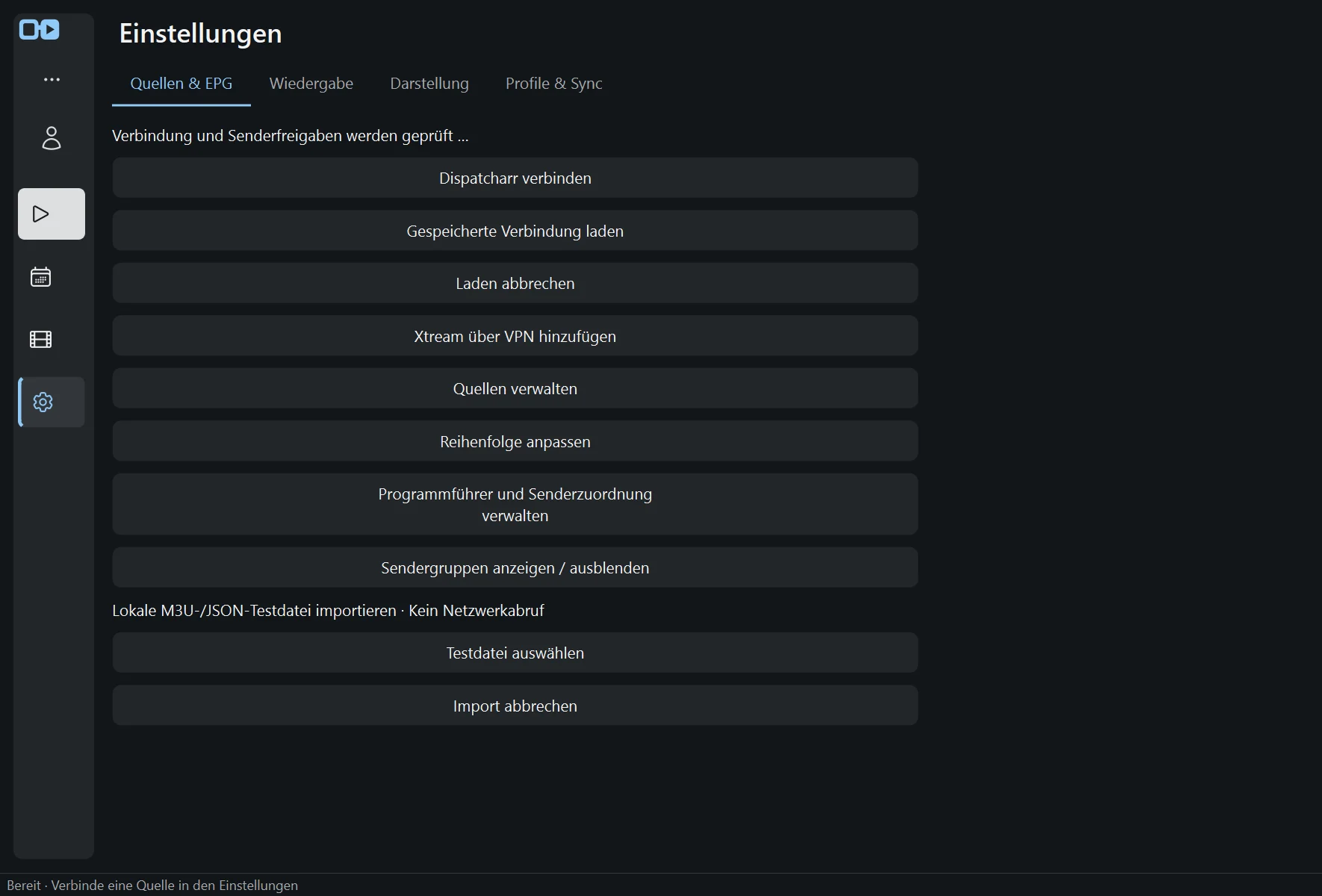
Open Settings using the gear in the left navigation, then Sources & EPG. Choose Connect Dispatcharr for a server, or Add Xtream over VPN for a direct provider.
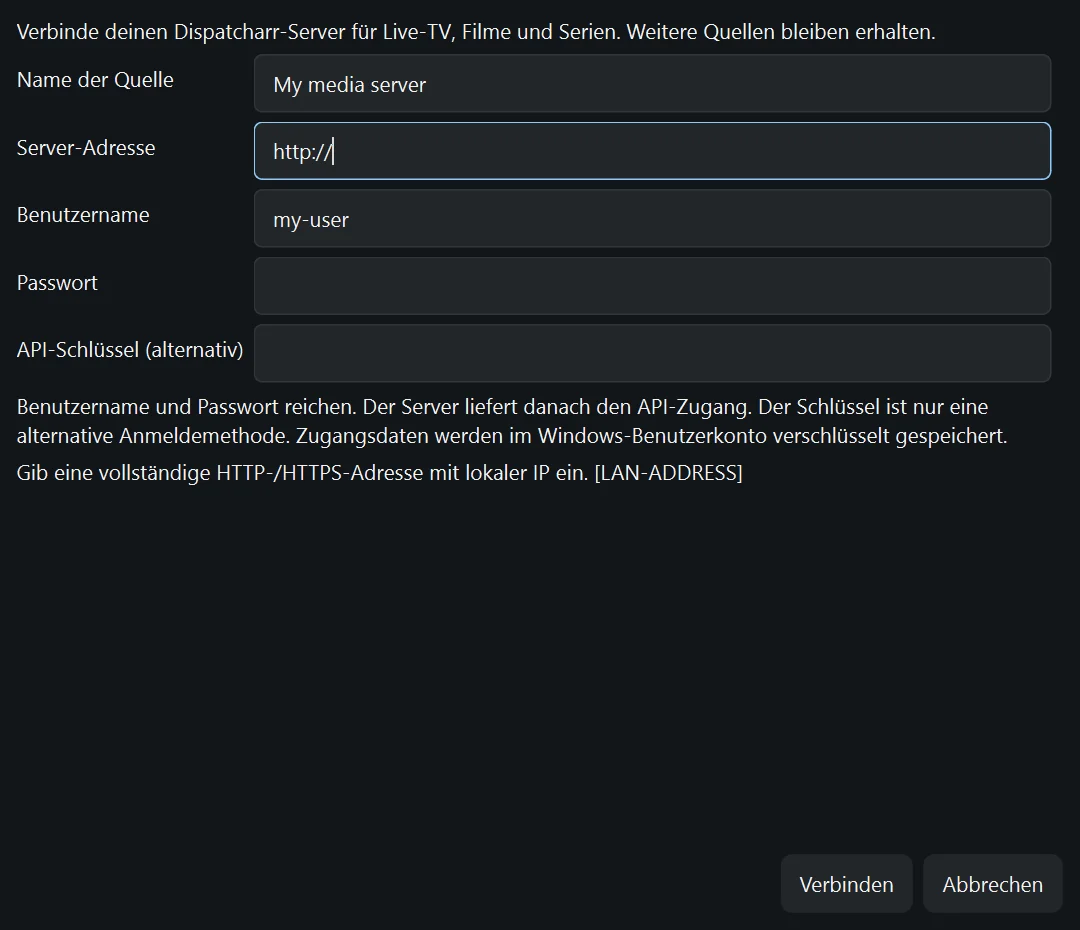
These screenshots show the German Windows development preview. Quellen & EPG means Sources & EPG; Dispatcharr verbinden means Connect Dispatcharr. The address and account below are fictional.
2. Enter the server and sign in
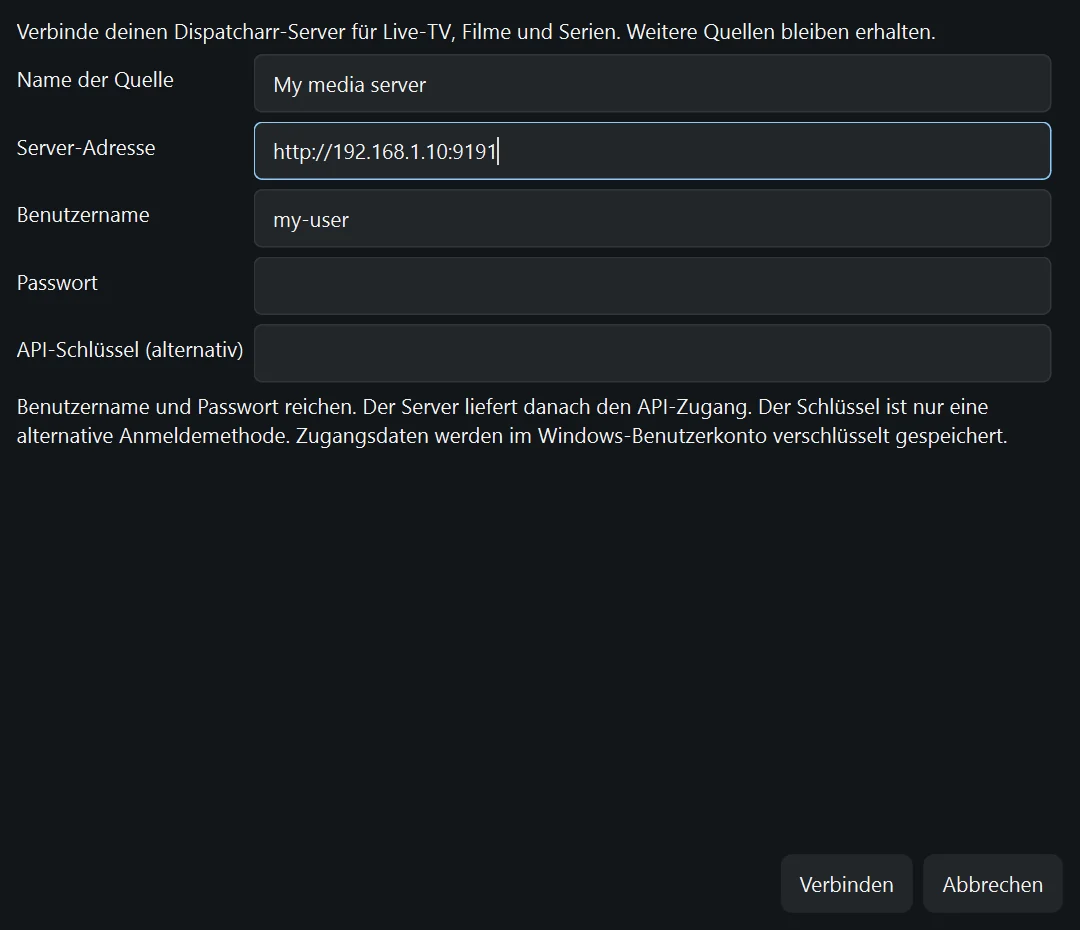
Give the source a name you recognise. Enter the complete local server address, including http:// or https:// and its port. The example address is not a service supplied by TiviNerd.
Enter your server username and password. An API key is an alternative for accounts that already have one. Select Connect and wait for the server validation. This desktop preview accepts a local IP for Dispatcharr; it does not imply support for every external hostname.
A direct Xtream source is a different connection. In this preview, verify the protected VPN route before checking credentials or loading its catalogue and artwork. No provider account or media is included.
3. Correct an error without starting again
An incomplete address is rejected in the same form. Correct it and select Connect again; you do not need to close the form and type every field again.
For an existing source, use Manage sources and Edit instead of adding a duplicate. A route or password change for the same account preserves the saved source identity and personal settings. A genuinely different account needs a separate source.
If validation fails, the previous saved connection remains in place. An error code identifies the failure without exposing a password. Cancel closes the check; it does not clear the saved library.
4. Open the programme guide
After a successful connection, open Programme from the navigation and choose a channel. Source setup, catalogue loading and playback are separate steps; a saved source does not prove that every stream is currently available.
If a stream fails, read the playback explanation. The desktop recovery path may try a supported alternative container. Stop always ends your own playback; a busy server does not authorize interrupting another viewer.
5. Control playback and return to your film
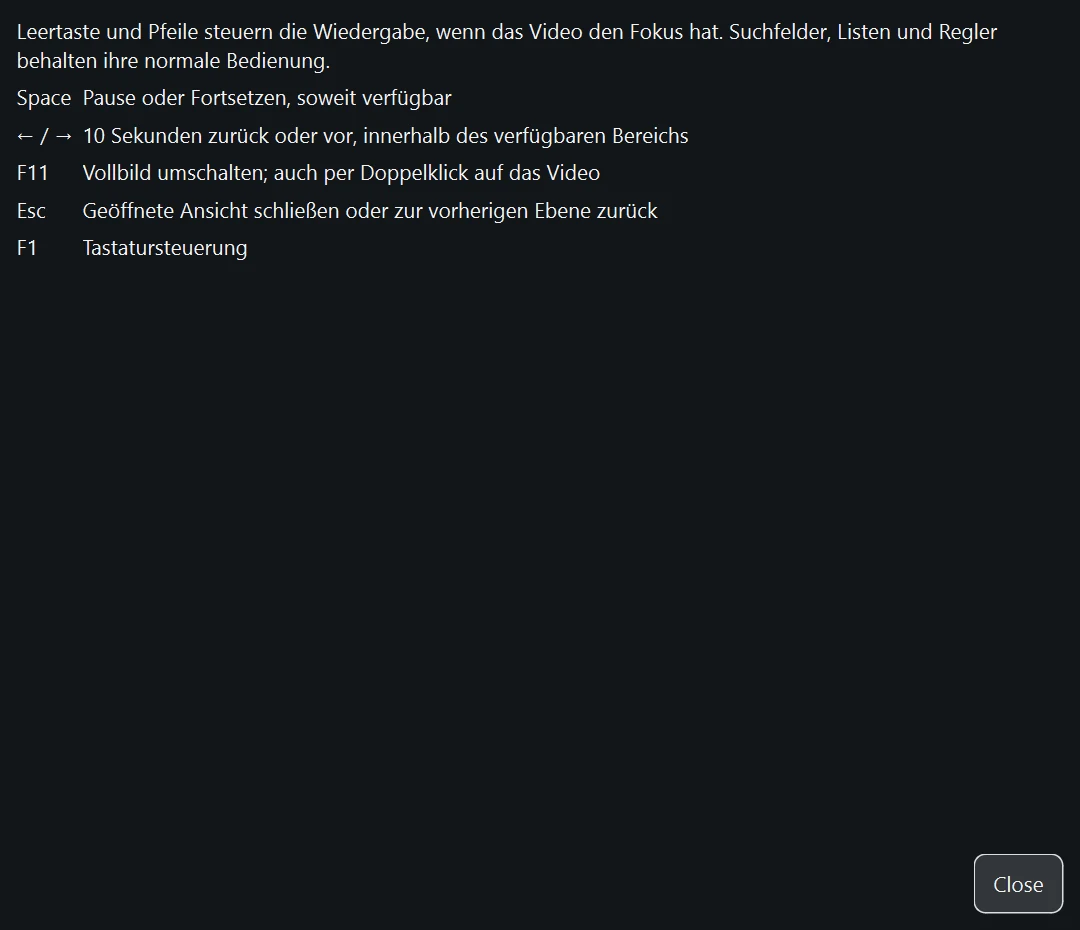
Press F1 for the keyboard reference. Space and the arrow keys control playback when the video has focus. Text fields, lists and sliders keep their normal keyboard behaviour. F11 or a double-click toggles full screen; Escape returns to the previous view.
Use the player volume slider or Ctrl+Up and Ctrl+Down to change this app’s level. Ctrl+M toggles mute. The chosen level and mute state stay with this device; they do not alter system volume or synchronize to other devices.
In full screen, move the mouse to reveal the controls and select Leave full screen. You can also right-click the video and choose Leave full screen. Playback continues in the same session.
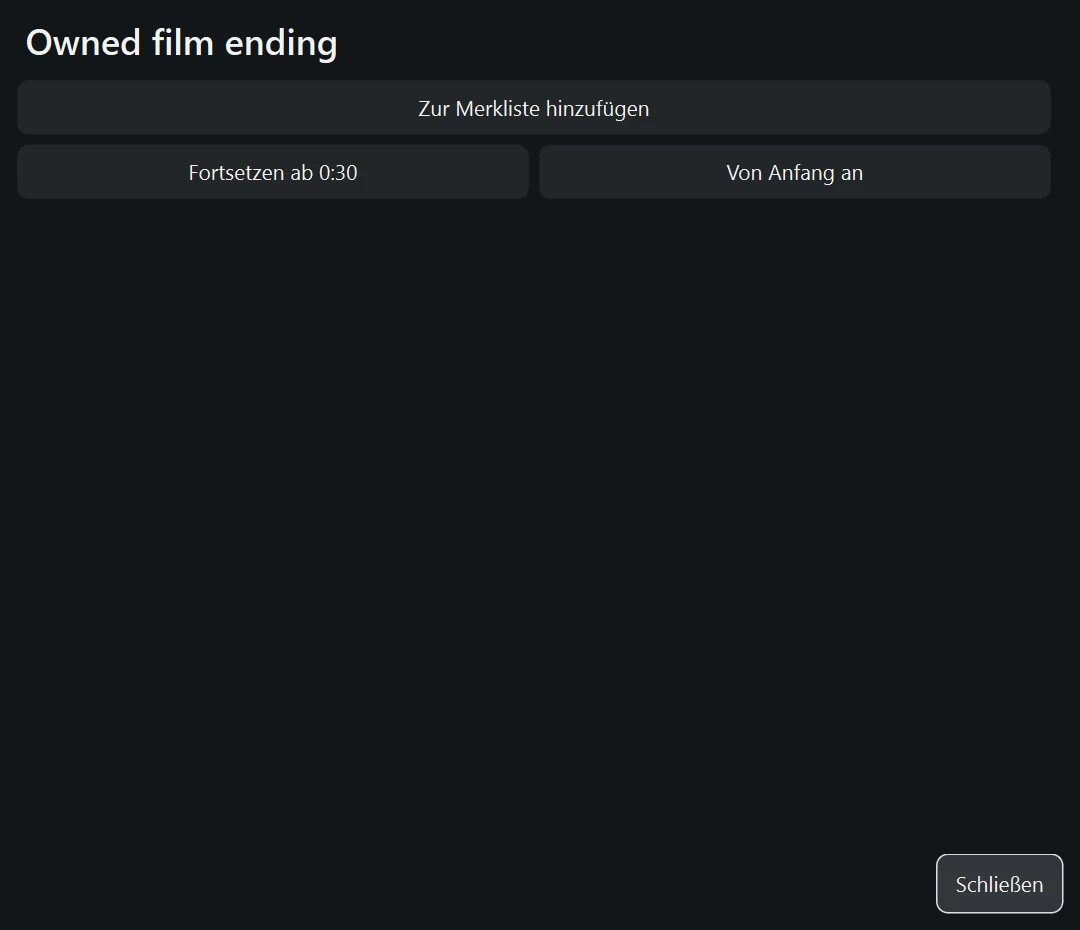
A finished film closes its playback and returns to that film’s details. Series can offer the next episode at the percentage chosen in Settings. At the last available episode, return to the series details instead of opening an unrelated title.
The examples below were captured from the Windows preview using fictional local media and the German interface. The help text here is English.