
Watching
Playback controls
Pause, seek, change tracks and leave playback with a clear destination.
Applies to 0.74 development preview; capture versions are stated below each illustration · English guide
Show the controls
On TV, use the configured remote action to show playback controls; a long press can open the fuller overlay. On touch devices, tap the video to reveal controls. Controls that depend on a missing capability should be disabled or explained.
Opening a menu, rotating the device or showing controls must not create a second player. Stopping playback is different from only hiding the app.
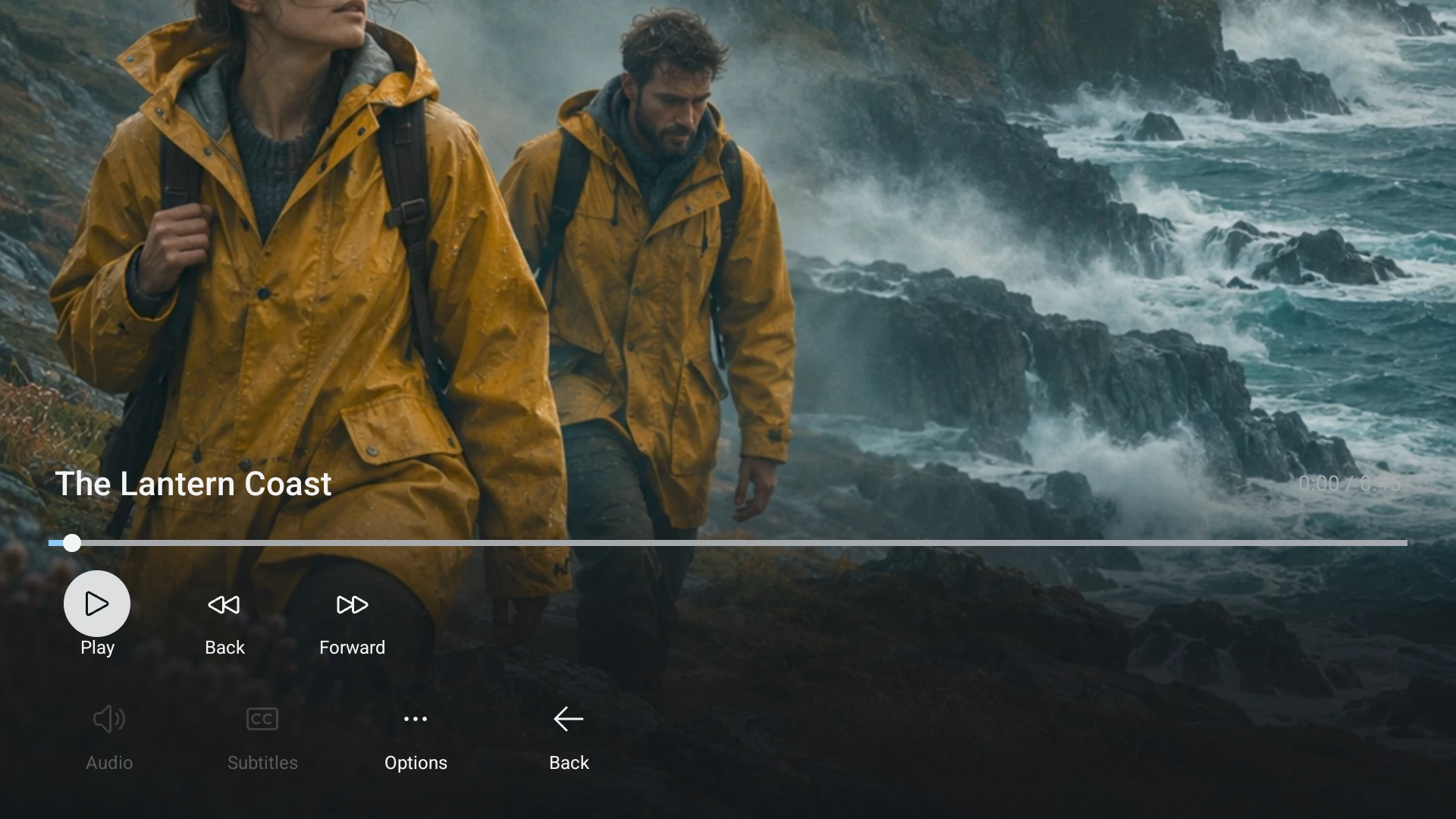
Pause and seek
Movies and episodes can usually pause and seek when their stream supports it. Local Live TV timeshift uses the buffer already captured by the app. A provider archive is a different source of past programmes.
You cannot rewind before the available local buffer or outside the provider archive. A failed seek should leave a usable recovery action.
Windows and Linux
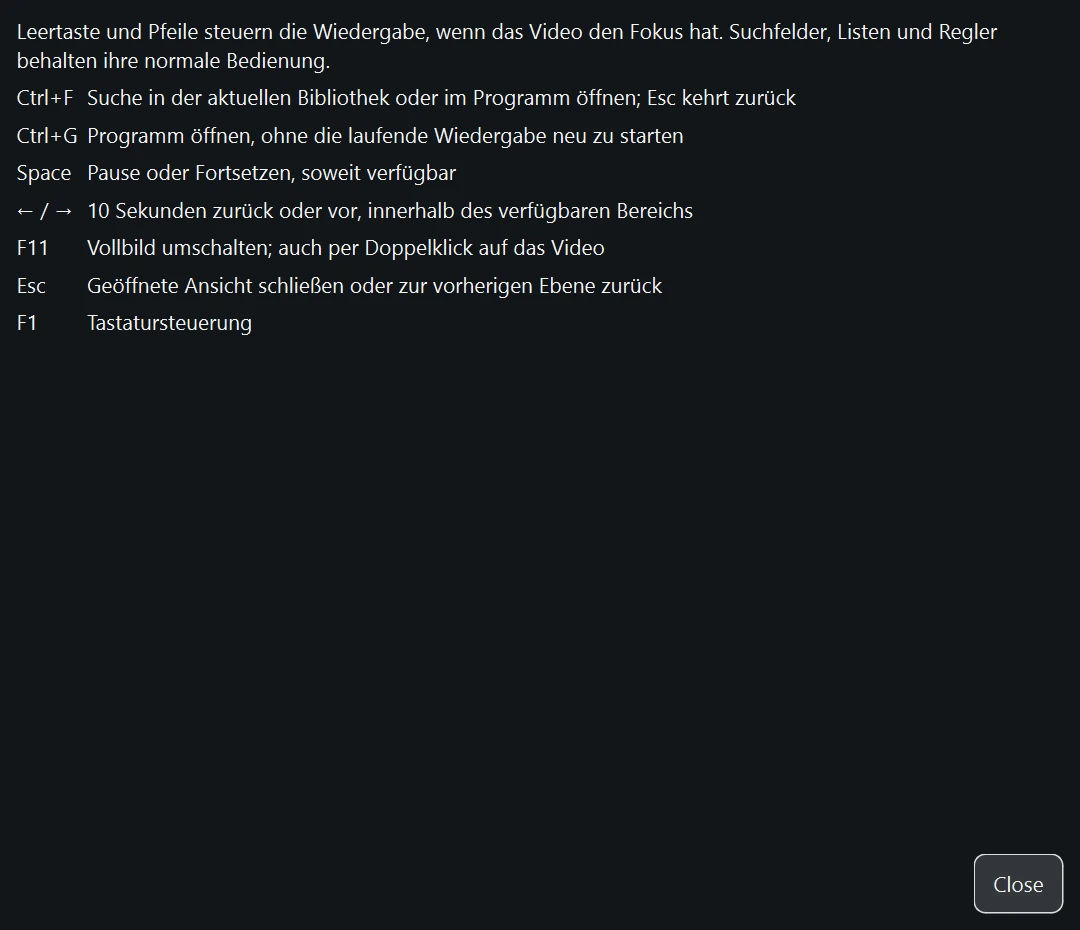
Select the video, then press Space to pause or resume. Left and Right seek ten seconds when seeking is available. These keys belong to the video: in a list, menu or slider they operate the focused control instead.
Press F11 for full screen, Escape to leave it, or F1 for keyboard help. Move the mouse over full-screen video to reveal the controls. The same player continues when the window changes size.
For a channel with local timeshift, use the timeline to move within the captured buffer. In the windowed player, Live returns to the newest available position. If the source has no usable buffer, the app cannot rewind it. Stop ends the stream; minimizing the window is not Stop.
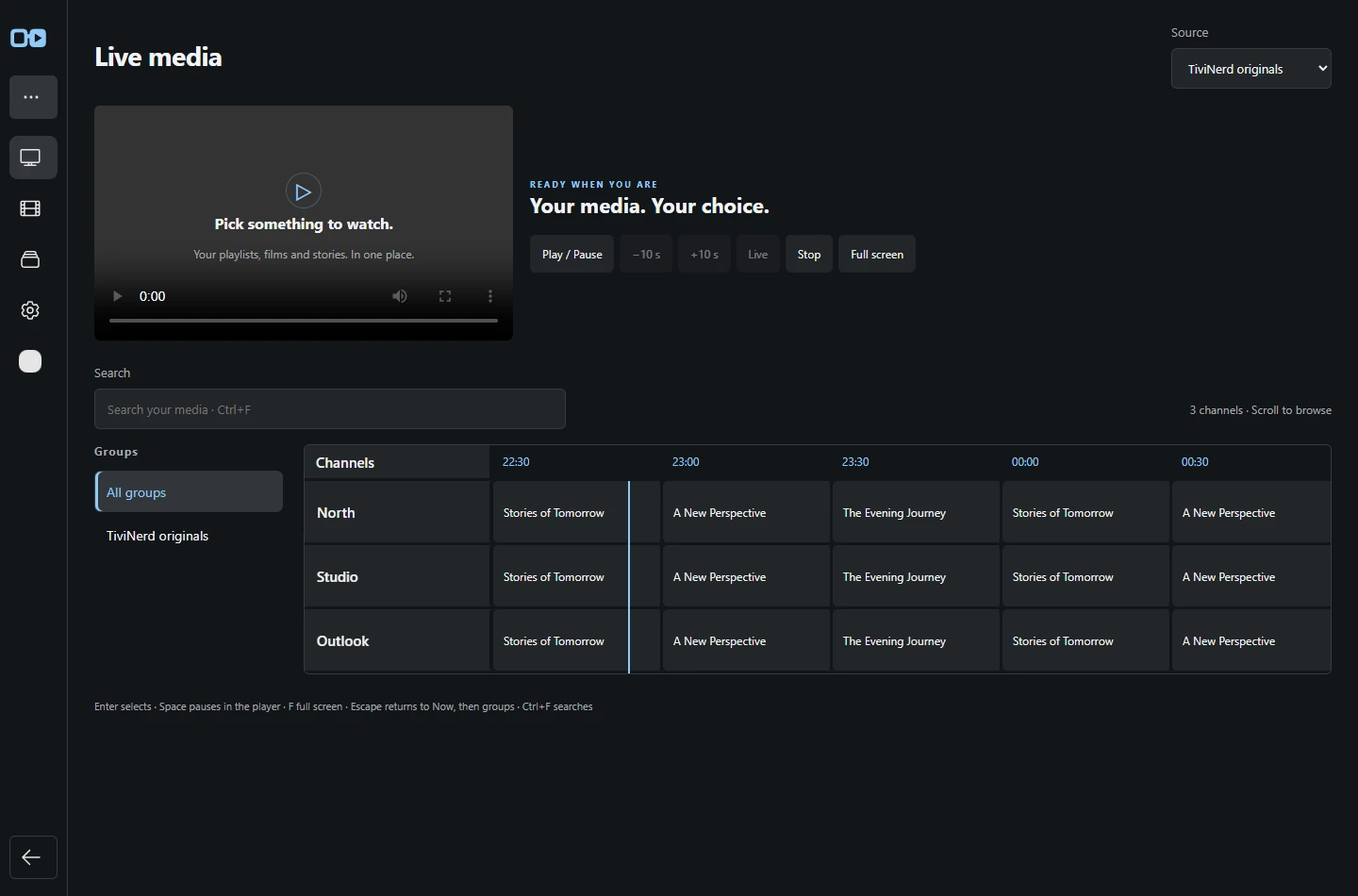
Browser player
Use Play / Pause, the ten-second seek controls, Stop and Full screen beside the video. Select the video before using Space. Use Ctrl+F to reach search; arrow keys in the guide browse the guide rather than seek the video.
The seek controls become available when the browser has a seekable range. Live moves to the latest buffered channel position. The buffer note shows the available range; it does not promise access to earlier programmes.
If a source needs the supported compatibility path, the player tries it before reporting a final failure. Stop and a new channel selection remain available during recovery. A source error cannot be fixed merely by choosing full screen.
Each browser tab has its own playback session. Stopping or changing media in one tab leaves another tab playing. Signing out or losing profile access still ends the affected sessions.
Continue to the next episode
When another permitted episode is available, Next episode appears near the end of the current episode. The default appearance point is 95% of its duration. Change the appearance percentage in the playback preferences; the percentage is a setting, not a message over the picture.
Select Next episode to start it. The button does not mean automatic playback is enabled. At the last available episode there is no next-episode action. If duration or episode information is missing, a reliable percentage-based prompt may not be available.
Audio and subtitles
Choose an available audio track or subtitle from the corresponding control. Language preferences are choices, not a promise that every channel or title supplies that language.
Muting the device changes Android media output. It must not disable the app audio track or silently overwrite the user's chosen volume.
Back, Stop and full screen
Back leaves the top playback/control surface according to the current context. Stop releases playback. Movies return to the movie detail; episodes retain their own series context.
Full screen changes the presentation, not the selected stream. A picture that has stopped changing while its playback clock continues is a fault to report, not proof of a normal pause.