
Sync
Google Drive household sync
Connect an approved Google account, create or join your household, and keep personal changes in sync.
Applies to 0.74 development preview · English guide
Before you start
Use the same Google account on your devices for this preview. TiviNerd requests access only to its own private app-data area, not your personal Drive documents. The Google account, household and viewing profiles are separate.
An administrator sets up and approves the household. Personal favourites and progress can then sync from every authorised device. Google access alone does not approve a new device or grant source-administration rights.
The Google project is currently in testing and limited to authorised test accounts. Consent can expire after seven days or earlier revocation. Public OAuth approval has not been completed.
Connect your Google account
- Open Settings > Household Sync and choose Google Drive.
- Choose Connect Google account. On supported Android devices, complete the Google account chooser and consent. On Windows and Linux, the system browser opens and returns to the app after approval.
- Check the account shown in the app. Connecting a different account requires disconnecting the current one first.
- Optionally choose Check connection to verify encrypted upload and download. This removes its temporary check data and does not enrol a household.
- Cancelling Google consent leaves your local sources and profiles unchanged.
- Android requires a supported Google sign-in environment. If sign-in is unavailable, use local Sync; do not enter Google passwords into source fields.
- The limited-input TV device-code route does not accept the required app-data permission in our current test project. The tested main box uses Google Play services consent instead. A TV code screen is not claimed as supported.
Create or join your household
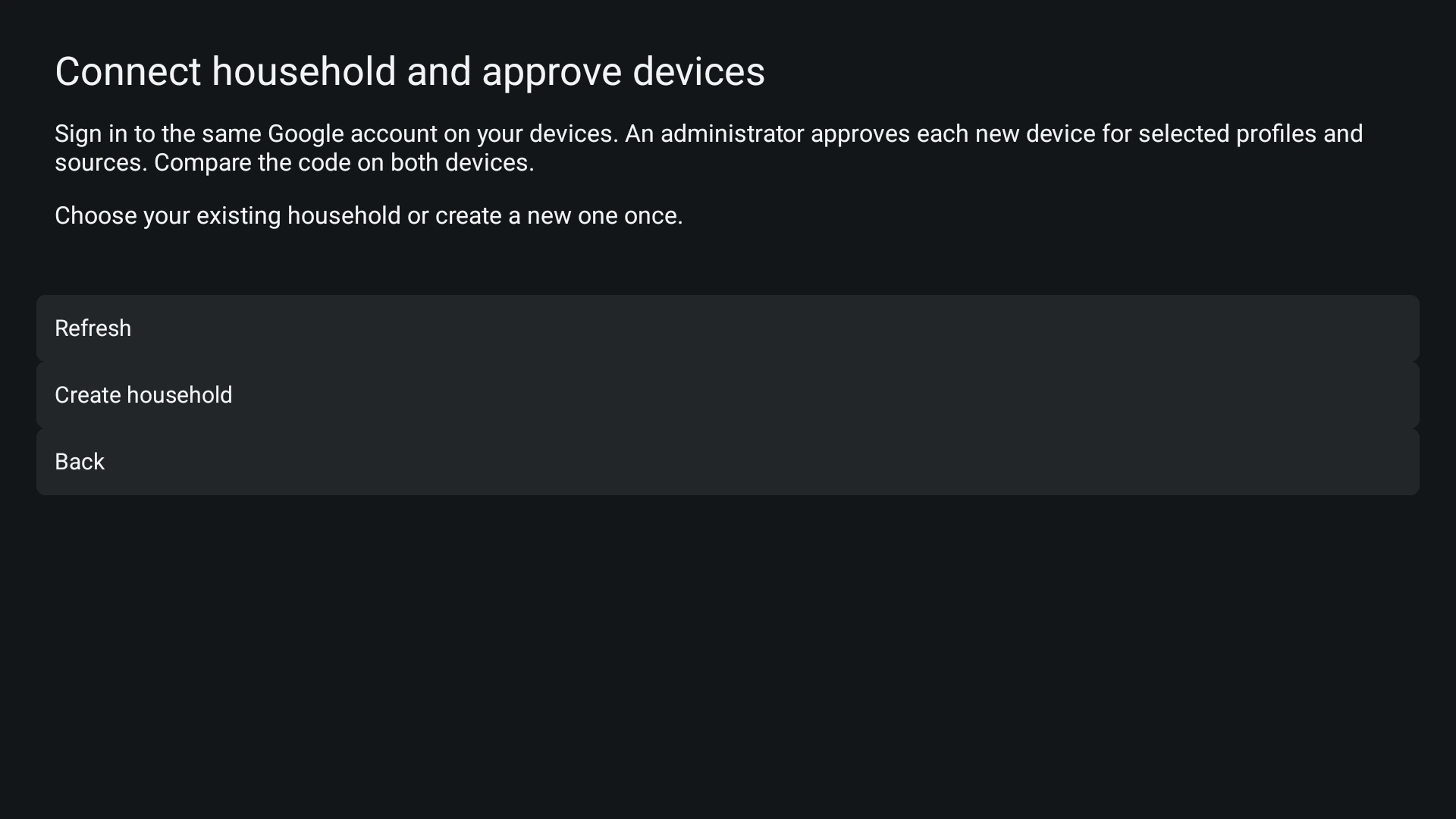
- Choose Connect household and approve devices. Create household once on the device used by the administrator.
- On another signed-in device, choose the existing household and request access.
- On the managing device, compare the request code with the code on the new device. Approve only a device you recognise and select its allowed profiles and sources.
- Refresh on the new device and join after approval. Select Use Google Drive to activate this sync route.
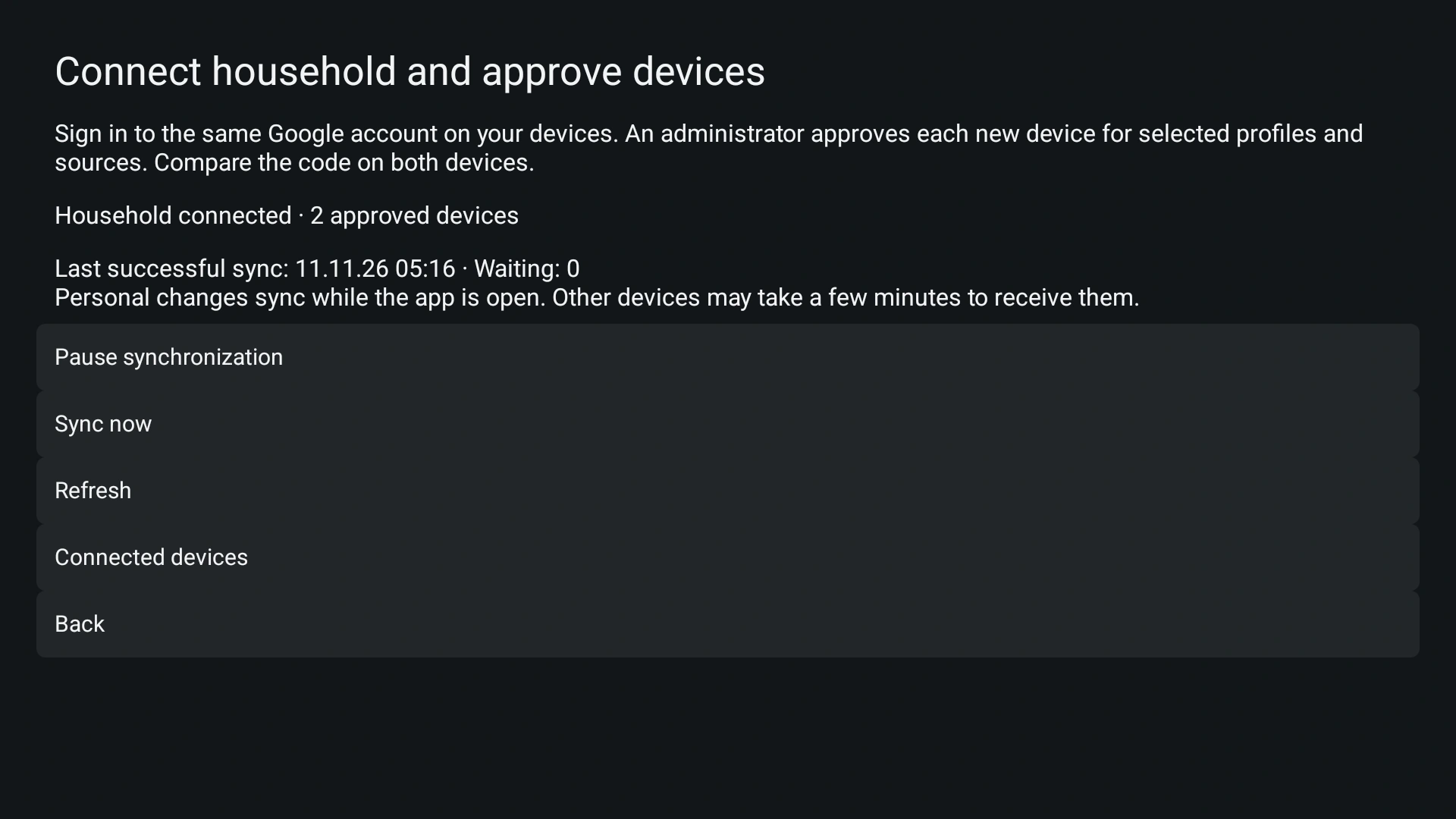
- Choose Sync now and check the last successful exchange. A received source configuration still needs its local catalogue to be prepared by that player.
- Creating another household is not the way to connect an additional device.
- If an approval is saved locally but has not reached Google, Refresh retries publication. Until it is published, the other device is not approved.
Everyday changes
Personal changes are combined while the app is open. Other devices may take a few minutes to receive them; use Sync now when checking a recent change.
Conflicting changes can require Review conflicting changes. Review the affected item and choose the version to keep. A server or cloud outage does not erase the last valid local configuration.
Device settings, programme and image caches, media recordings, and personal media-server sessions stay local. Sign in separately to your Jellyfin or Emby account on each device.
Pause, disconnect or remove a device
Pause synchronization stops exchanges without deleting local settings. Disconnect this device removes its Google access; local sources, favourites and progress remain.
The household administrator can remove an approved device through Connected devices. That blocks later authorised exchanges after the device checks the changed permission. Previously received files cannot be remotely erased.
Use one sync route for the household at a time. Review the current household before changing between local Sync and Google Drive; do not run two competing configurations.
Sign in again when Google access expires
Check the displayed account, internet connection, household approval and last successful sync. If Google consent has expired or been revoked, reconnect the intended account. This Google reauthorization renews access; it does not require creating another household or importing your sources again.
Repeated failures use bounded retries. Correct the cause before retrying; deleting app data or adding the same source again is not a required recovery step.
Share the error code and a sanitised diagnostic report when requesting support. Never share Google tokens, provider passwords or household approval secrets.