Settings
Programme guides and channel mapping
Manage shared XMLTV feeds centrally and assign them to the sources that need them.
Applies to 0.70 development preview; Android illustrations retain their labelled capture versions · English guide
Choose the guide for your player
Android TV, tablet and phone share the saved guide library described below. Windows, Linux and the Docker Web Player have a central Programme guides section in Settings. Their current private previews import a local XML or XML.GZ file rather than fetching a guide URL from this editor.
A saved guide and a media source are separate. One feed can serve several sources; each source retains its own channel assignments and time correction.
- On desktop or web, open Settings > Programme guides. Enter a guide name, choose your XMLTV file and import it.
- Select the media source and choose Use this guide for the source. Importing a file alone does not change every source.
- Search for a media channel, choose the matching guide channel and inspect the programme preview. Save channel assignment commits the selection.
- Use automatic channel matching removes the explicit channel override. Use source's own guide returns that source to its native programme data.
- To update a saved feed, select it and import its replacement. An incomplete or invalid file keeps the previously saved guide and mappings.
- File uploads are limited to 64 MB in the current web preview; parsing also has bounded time and expanded-data limits.
- Time correction is in minutes and belongs to the selected source. Check device time and timezone first.
- The remaining illustrated steps are for Android. Each picture states its real capture version; older pictures are not presented as new captures.
Shared guide library
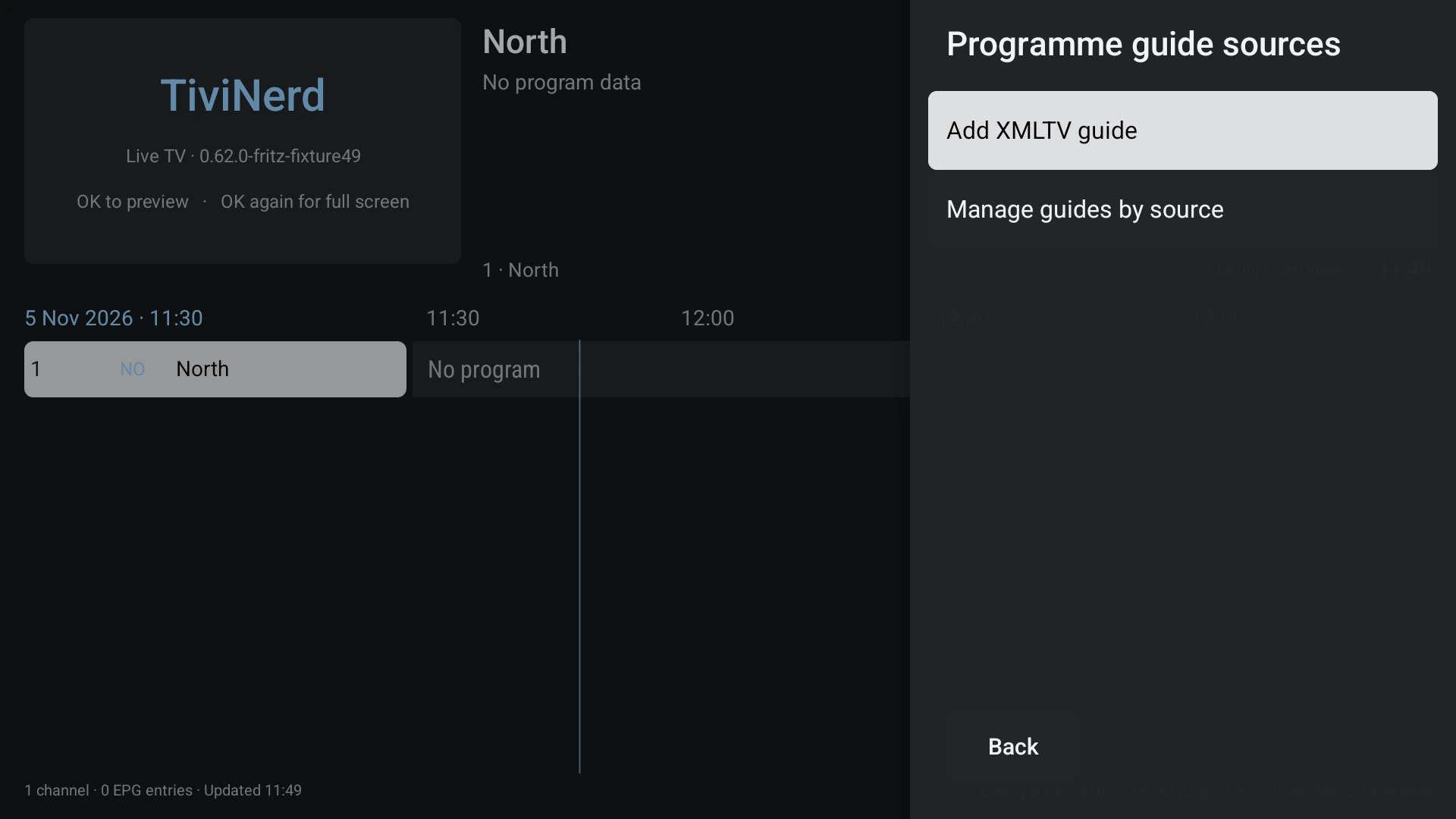
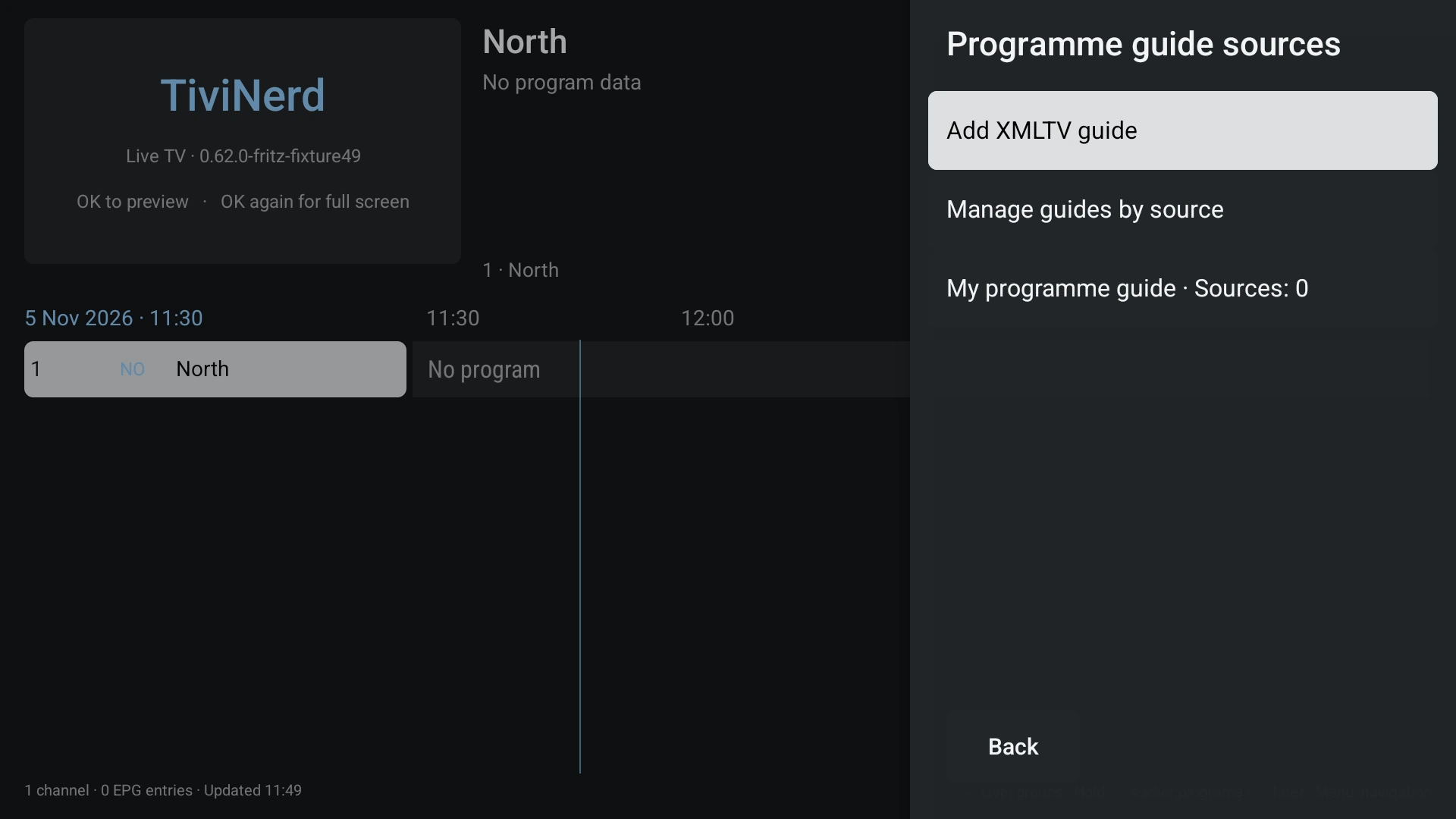
Open Settings > EPG. Choose Add XMLTV guide to create a guide, or Programme guide sources to open your saved guides. The same entry points are available on TV, tablet and phone.
Creating a saved guide does not automatically assign it to every source. A shared edit affects its existing assignments. Removing an assignment from one source leaves the saved guide available to the others.
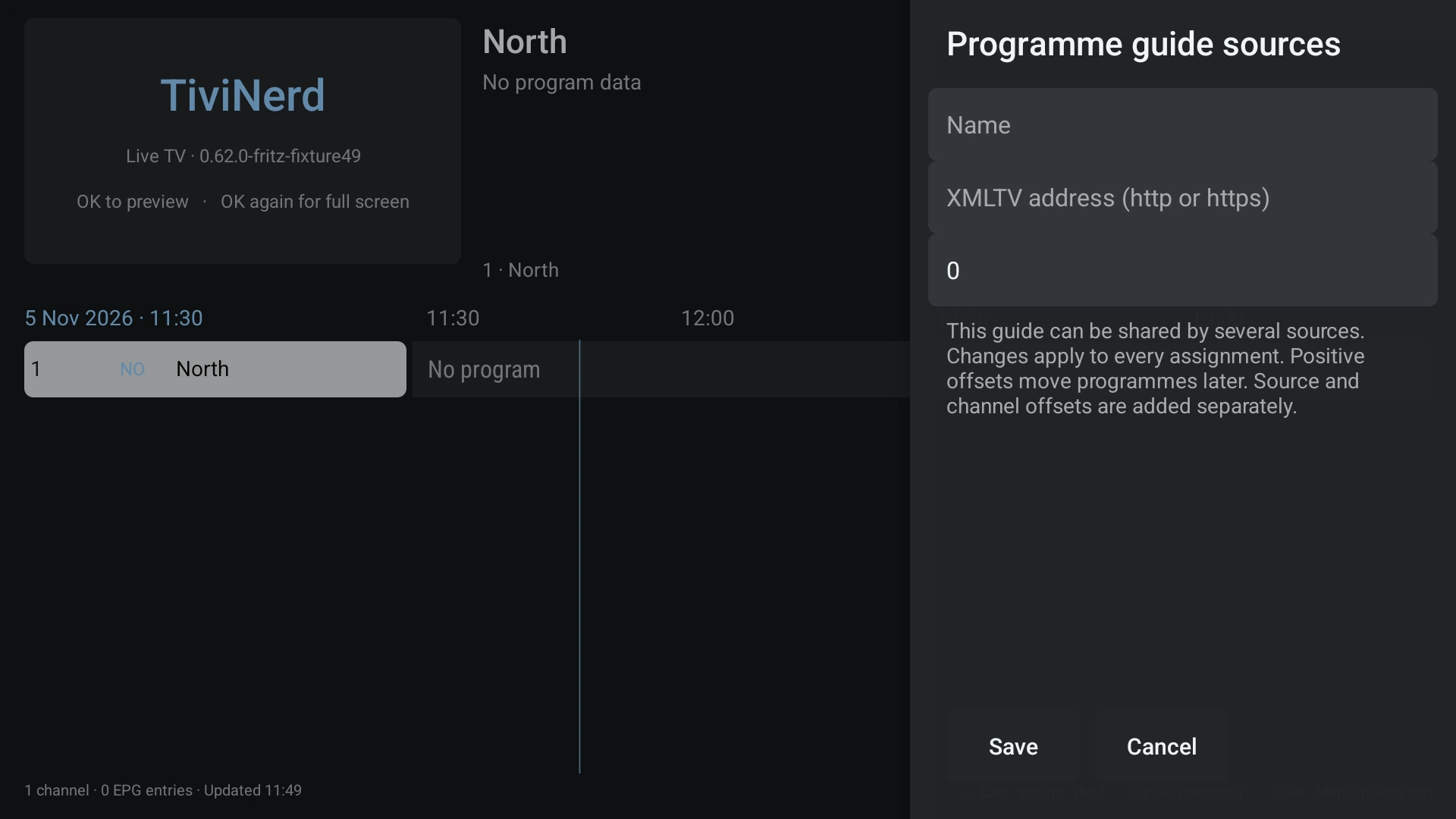
- Choose Add XMLTV guide and enter a name and the complete XMLTV address. Leave the time offset at zero unless the guide needs an adjustment.
- Save the guide, then select its name in Programme guide sources.
- Choose sources opens the multiple-source selection shown below.
- Keep addresses containing access tokens private. Changes to the same guide retain its stable identity.
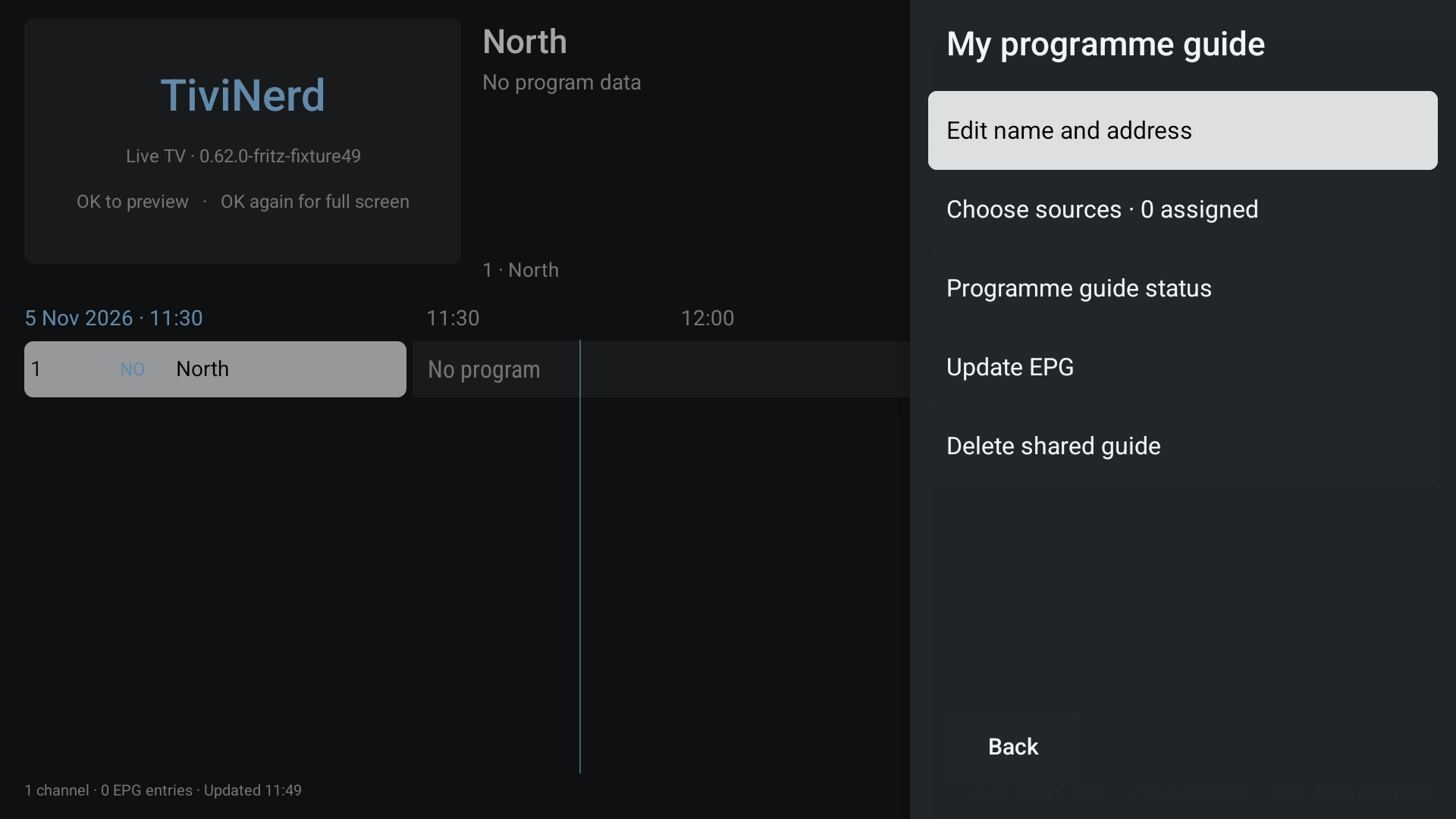
Use one guide with several sources
You enter the guide address once. Choose all Live-TV sources that should use it; each source keeps its own priority and channel mappings.
- Tick the sources you want, or untick a source to detach this guide from it.
- Choose Review changes. Nothing has been saved yet.
- Check the Add to and Detach from lists, then Save. Back returns to the selection.
- New assignments are added at the end of that source's guide list. Existing disabled assignments stay disabled.
- A guide with no assignments stays saved for later use.
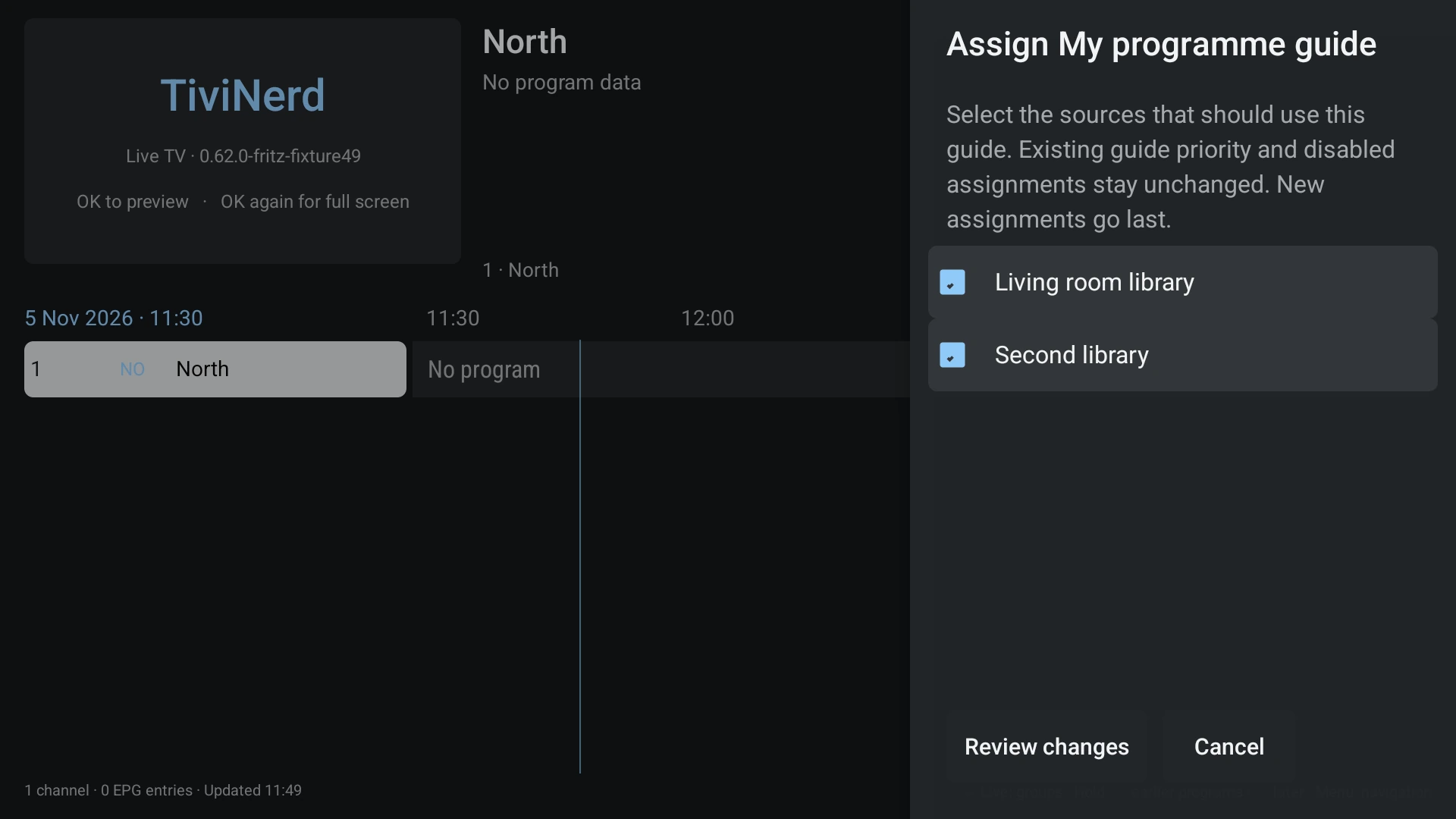
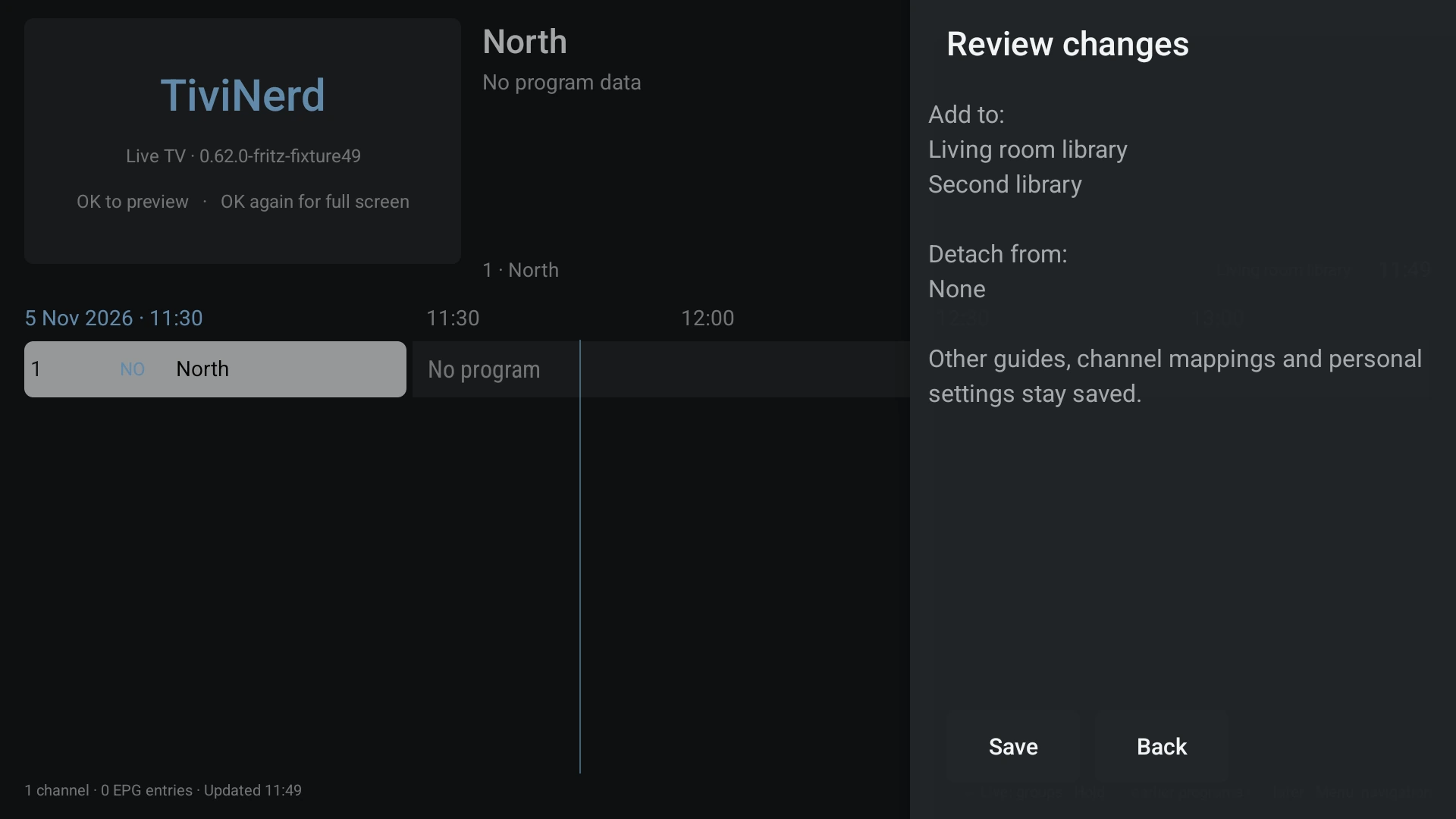
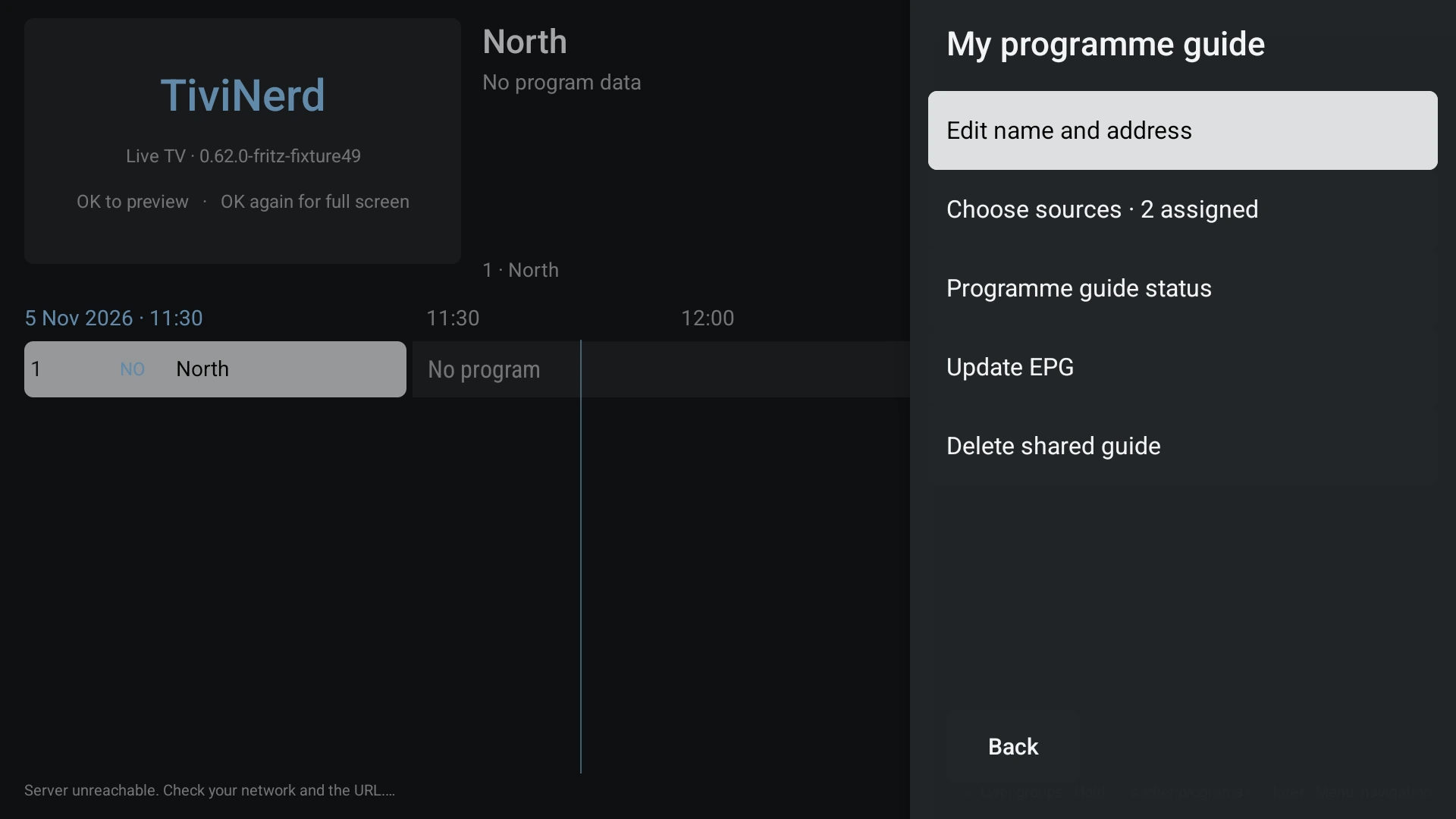
Source priority
Use Manage guides by source, select the source and open its XMLTV guide list. Move assigned feeds up or down. The first unambiguous matching channel is used. An explicit manual mapping takes priority over automatic matching.
Disable or remove an assignment when it should not be consulted for that source. Deleting a guide centrally asks before removing its assignments.
Edit, detach or delete
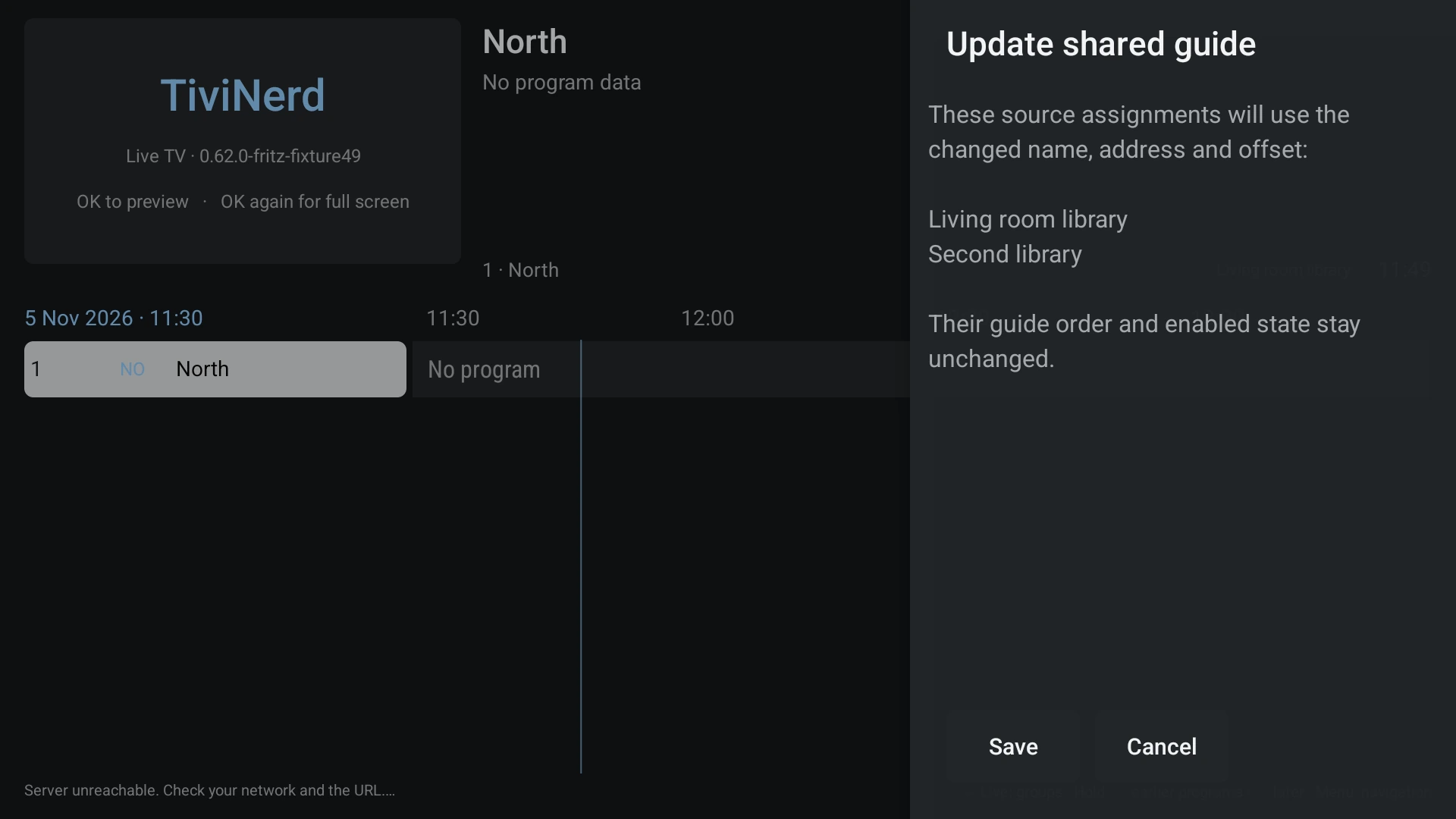
Editing a saved guide changes its name, address or offset for all its assignments. The confirmation lists the affected sources before you save.
Detach from this source removes one membership. Delete shared guide removes the saved definition and all of its assignments after confirmation. Channel lists and personal settings remain saved.
- Open the saved guide and choose Edit.
- Change the fields and select Save.
- Read the affected-source list. Save confirms; Cancel keeps the previous guide.
Manual channel mapping
- Open the source EPG settings and choose Map channels.
- Search by channel name or guide identifier. Distinguish regional, SD and HD services.
- Select a candidate and inspect the available current-programme preview. Apply the mapping explicitly; Back/Cancel leaves it unchanged.
- Use Automatic to restore normal matching, or No EPG to intentionally leave a channel without guide data.
- A similarly named service is not necessarily the same service.
- A missing/deleted guide does not justify silently remapping the channel to another feed.
Time offsets
A guide offset applies to that feed. Source and additional channel offsets are added separately. Positive values move programme times later; changing an offset does not rewrite the channel stream address.
Use the same time basis when comparing guide and actual broadcast. Check device date, timezone and a current programme before compensating for a mismatch.
Updates and saved data
Guide data is downloaded and saved separately from the channel list. A failed refresh keeps the previous complete guide; a stale guide is not a successful update.
Update interval, update on start and source availability are distinct settings. Ordinary automatic updates run while the app is open; scheduled recordings are handled separately.
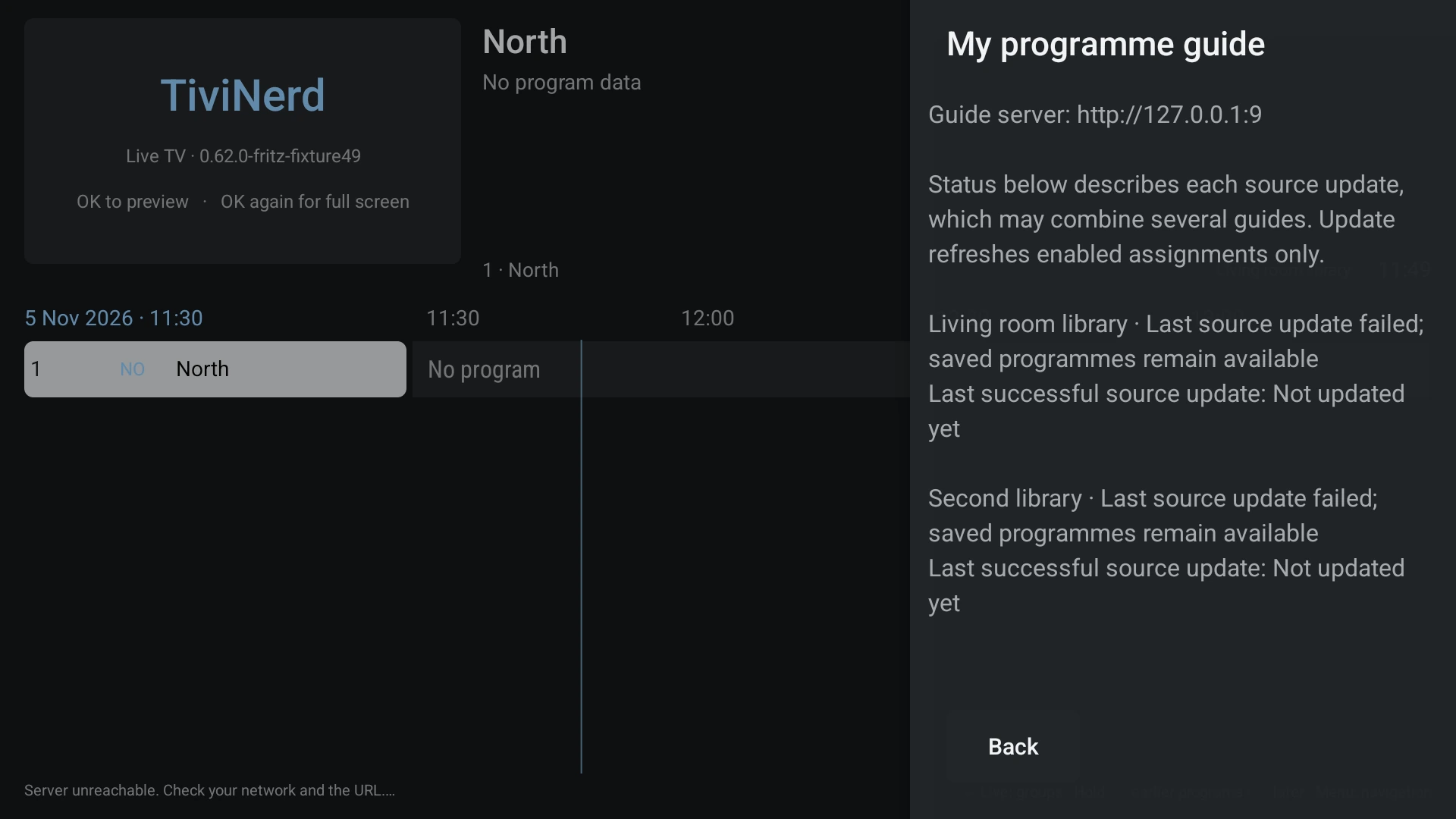
Status is per source. One source update may combine several feeds, so its successful timestamp is not an independent success verdict for each XMLTV feed.
- Select a saved guide in the shared library and choose Status to inspect its server origin and assigned-source update states.
- Choose Update EPG to refresh enabled Live-TV sources with an enabled assignment. Disabled assignments are left alone.
- For a more detailed source history or channel matching, open that source's EPG settings.