
Connect a source
Jellyfin
Browse a Jellyfin library and server-provided Live TV features where available.
Applies to 0.74 development preview; capture versions are stated below each illustration · English guide
What you need
Use the address of your own Jellyfin server and a permitted Jellyfin user. Its media libraries and Live TV configuration are managed on the server.
Live TV requires a configured Jellyfin tuner or playlist and programme guide. An ordinary film library does not create Live TV channels.
Server DVR actions depend on server version and the account permissions exposed by its API.
Set up the source
- Choose Jellyfin, discover an available local server or enter its address.
- Sign in using the Jellyfin account and choose the supported libraries/content areas.
- Finish preparing the catalogue. Browse Movies or Series, or the available Live TV area.
- Configure recording and guide settings only for features actually provided to this user.
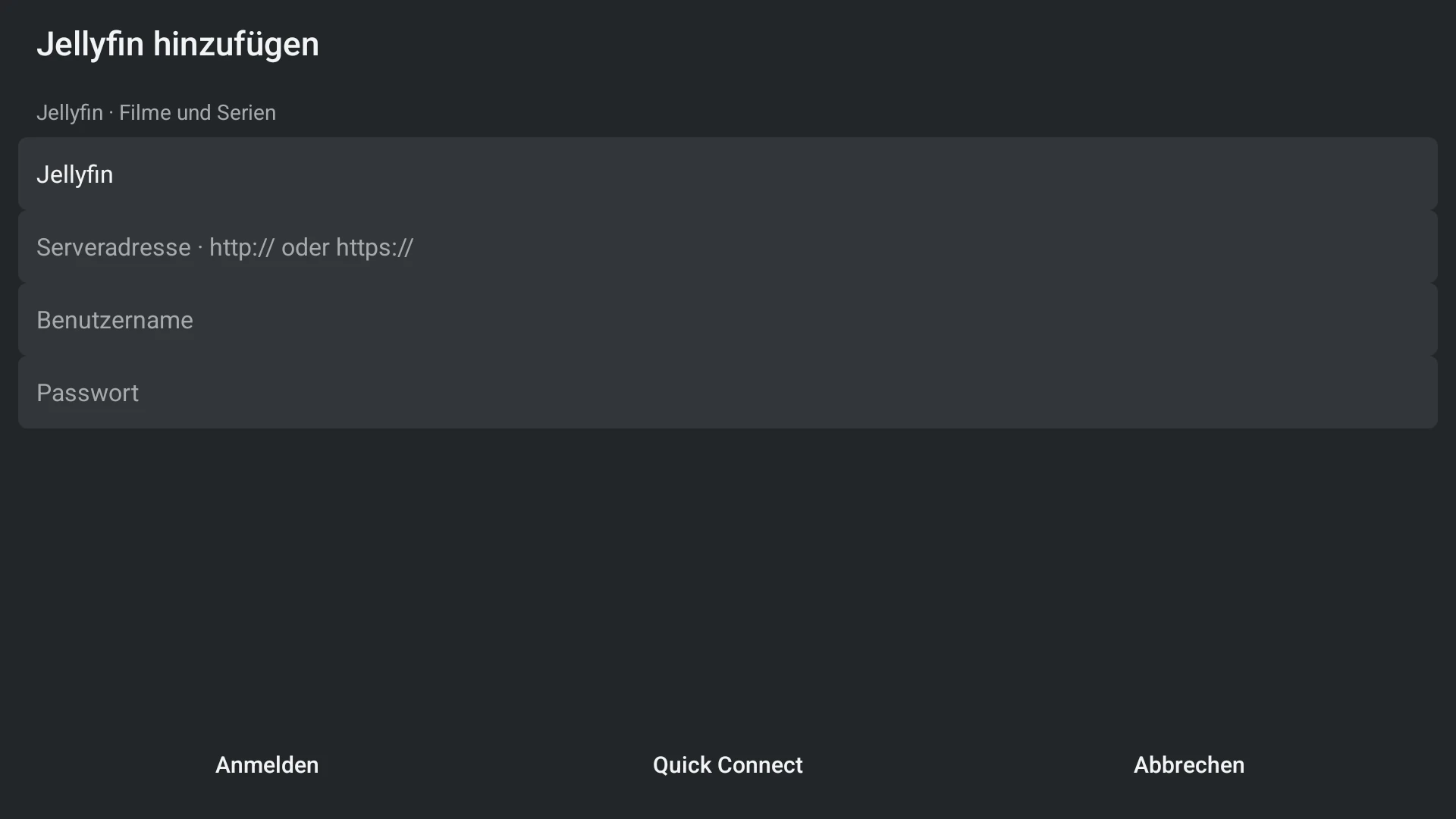
Use your own server account
The household administrator adds the shared Jellyfin address. Each TiviNerd profile can then be linked explicitly to its own permitted Jellyfin account on this device. Matching profile names do not create a link.
Jellyfin permissions and TiviNerd profile restrictions both apply. A missing or failed personal login never silently falls back to a server administrator account. Children cannot link an unrestricted adult account themselves.
Profiles linked to the same Jellyfin account share that server’s favourites and viewing history. TiviNerd’s own watchlists remain profile-specific. Separate server accounts are needed for separate server histories.
- Open the profile actions or Settings and choose Media server accounts.
- Select the shared Jellyfin server. Sign in with the account intended for this profile; the shared server address remains unchanged.
- If credentials fail, correct them in the same form. Cancelling leaves the existing account unchanged.
- To remove this local link, choose Disconnect account and confirm. This does not remove the shared source or other profiles.
- Personal server sessions are stored locally and are excluded from household sync. Link the account separately on each device.
- A TiviNerd administrator is not automatically a media-server administrator. Changes to server library access still belong to the media server.
Capabilities and limits
- The website account, Sync administrator and Jellyfin user are separate accounts.
- The source must stay reachable from the playback device, not only from the PC.
- Changing a password must not be used as a reason to discard personal library state.