
Watching
Movies, series and saved lists
Browse stored cards, choose an episode and return to the same place after watching.
Applies to 0.74 development preview; capture versions are stated below each illustration · English guide
Browse your library
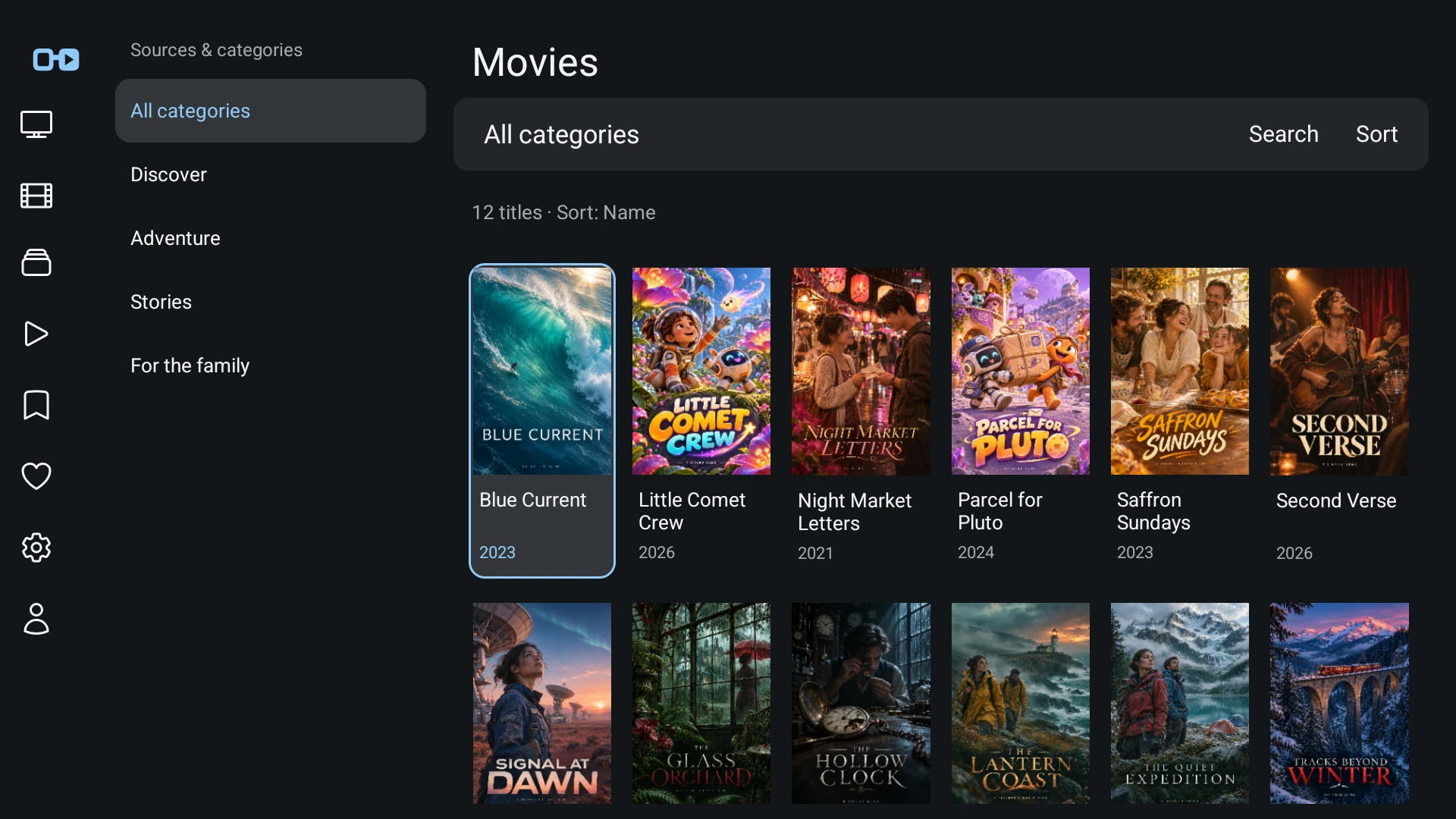
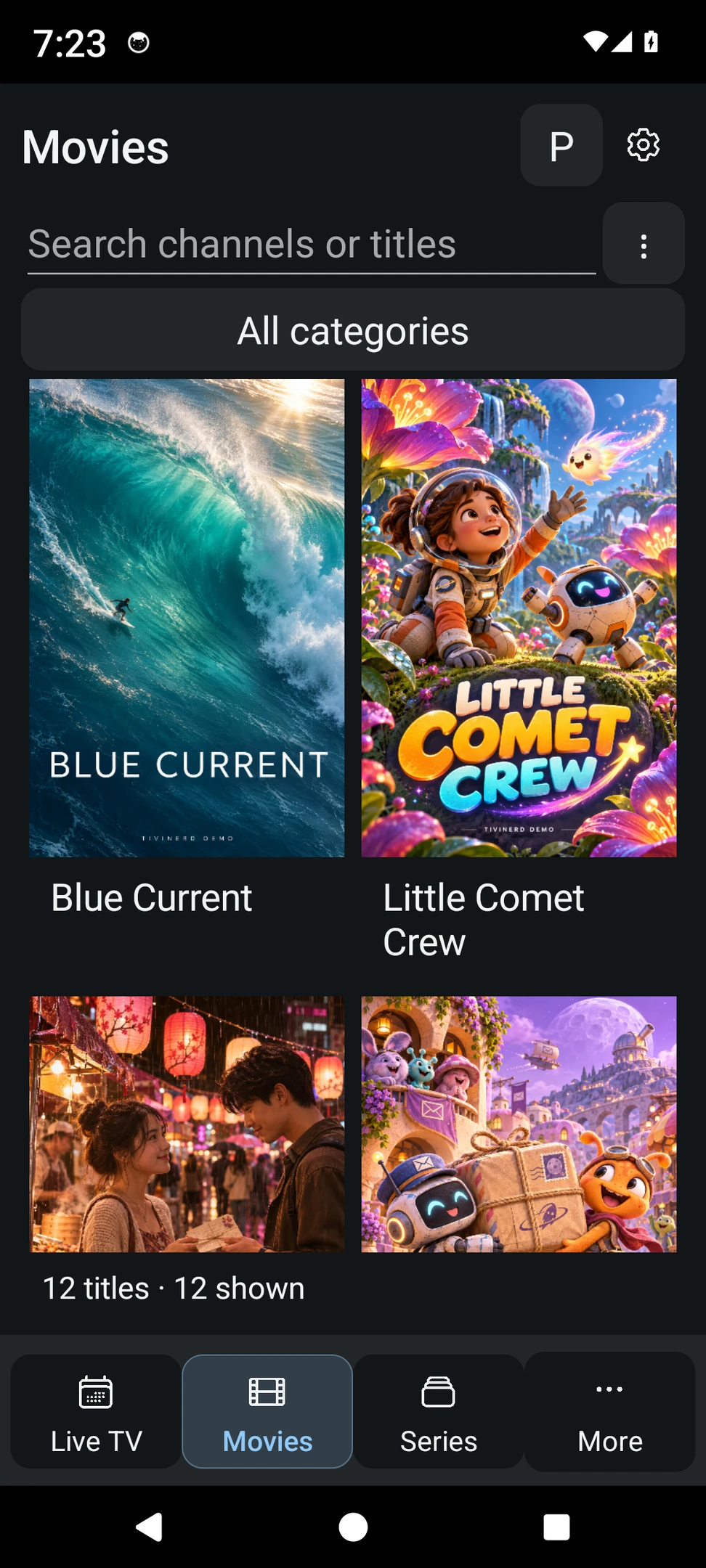
Movies and Series are separate content areas. Choose an available source and category, then search or sort the locally saved library. Cards and their names can appear before every poster has loaded.
A filtered category, an unfinished import and a real empty library have different meanings. Check the selected source, content kind, visible groups and setup status before assuming titles are missing.
Open a title
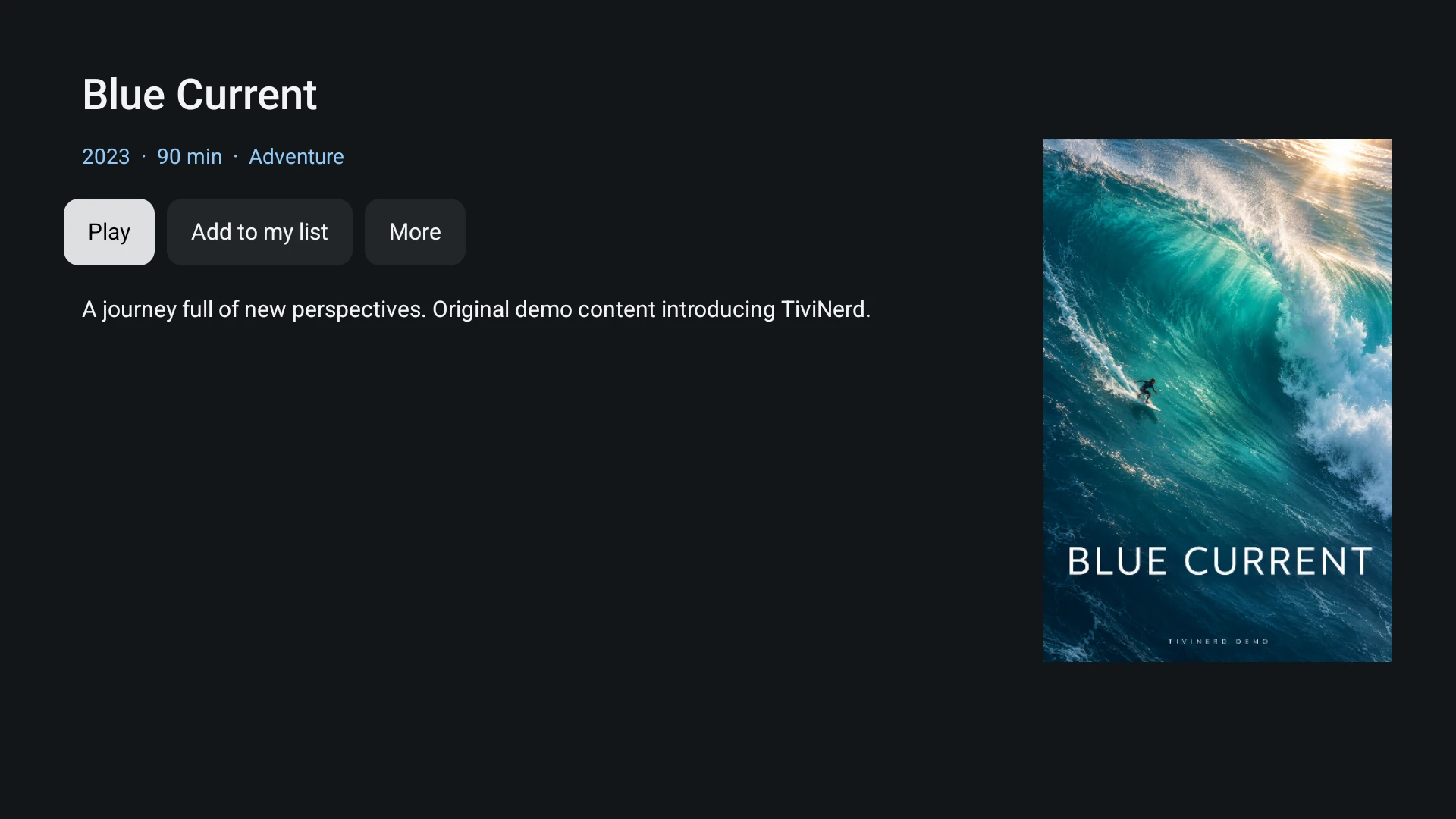
Optional cast, artwork, ratings and other details depend on supplied metadata. No external metadata lookup or intro marker is invented when the source does not provide it.
- Select a card to open its details.
- Choose Play or Resume for a movie. For a series, open the available season and episode list.
- Use My list to save a reference to the title. The content still comes from its original source.
Return after playback
Stop or Back from finite playback returns to the retained title detail and browsing context. At the natural end of a movie, 0.61 returns automatically to that movie menu instead of requiring an additional Finished/Back step.
Series use a separate next-episode flow. The next episode must belong to the actual current series and remain permitted by the profile.
Next-episode preferences
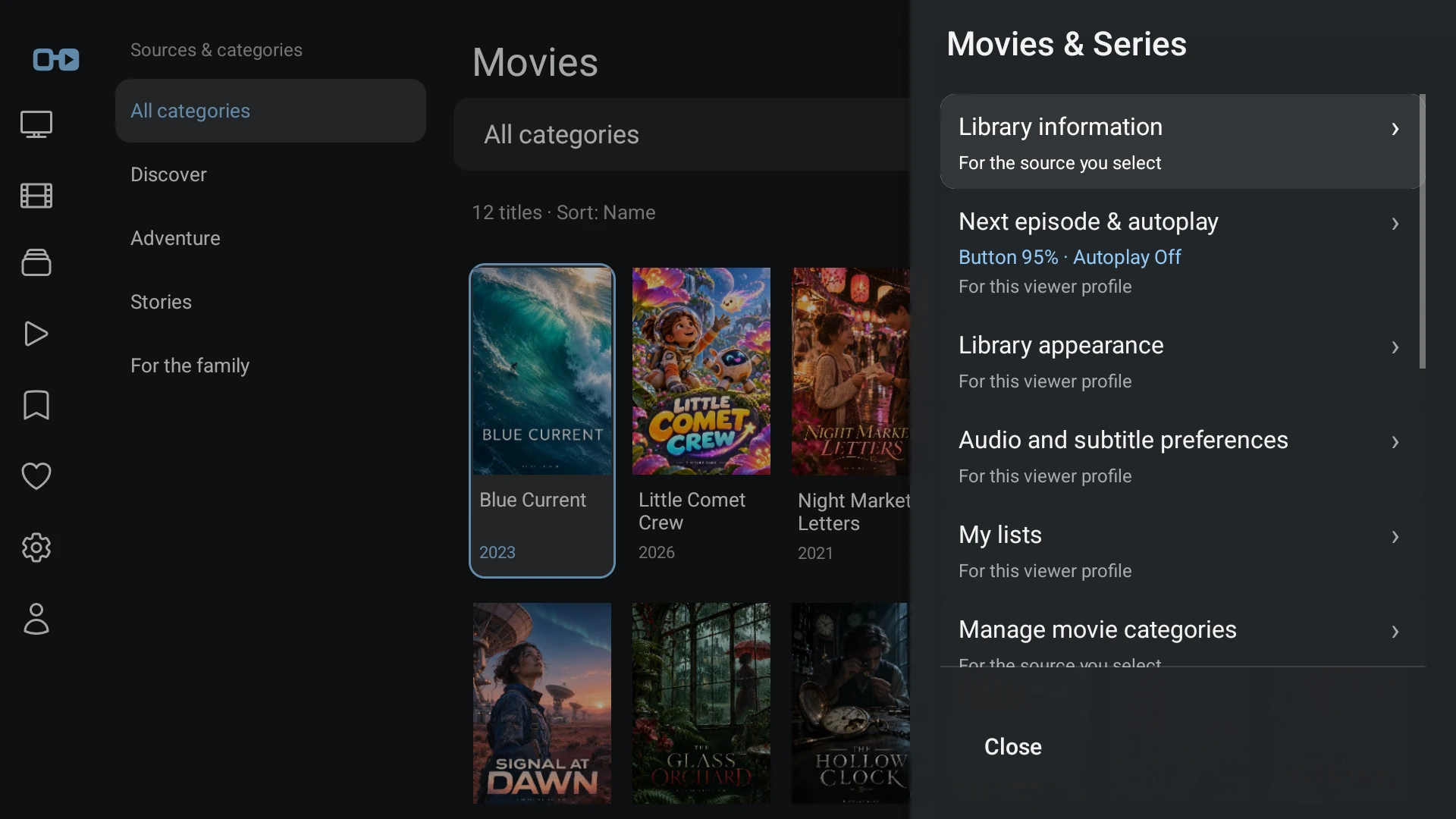
The Next episode button and automatic continuation are separate choices. Configure when the button appears as a percentage of the episode; the default threshold is 95 percent. The percentage is a preference, not text that needs to cover the video.
A next-episode countdown can be cancelled. If no next episode is known or permitted, the player must not invent one.
Personal state and filters
Watchlists, progress and category choices belong to the relevant account and viewing profile. A lock or hidden category applies to saved lists and search as well as the main library.
Clearing a disposable poster cache is different from deleting the durable catalogue or personal state.
- Open Settings, then Movies and series, to choose the visible categories for the current source and profile.
- In the library, select a category and use Sort to change its order. Search and My list still respect hidden and restricted groups.
- Return to All categories to see the permitted collection. The visible count describes that selection, not every title offered by every account.