
Sync
Companion and your account
Understand the separate management app, device approval and the difference between an account, household and viewing profile.
Applies to 0.75 development preview · English guide
Player or Companion?
TiviNerd Player plays media from your own sources on supported devices. TiviNerd Companion is a separate Android management app. It does not play channels or supply media.
Companion uses no playback device slot. A viewing profile, a household administrator and the account used for a future purchase are different identities. The current internal preview accepts no payments; it does not lock existing test players.
Connect your management app
For this internal preview, the operator must configure a qualified account service first. Public registration and recovery email are unavailable until real mail delivery is configured. Never enter provider credentials or a Google password into the account-service address.
- Choose Connect account in Companion. The browser opens the account sign-in page.
- Check the management device name, account and connection code. Confirm the request only when you recognise it. Sensitive approval requires normal password or supported account reauthentication.
- Return to Companion. It collects the approval using a separate private secret; the displayed code alone cannot sign in.
- If you cancel, the request expires or the service cannot be reached, reconnect when ready. Local player sources are not replaced.
- Management sessions expire after one hour in this development preview. Device changes require a recently confirmed account.
- An offline account snapshot is read-only and may be out of date. Connect again before managing players.
Approve a player and manage devices
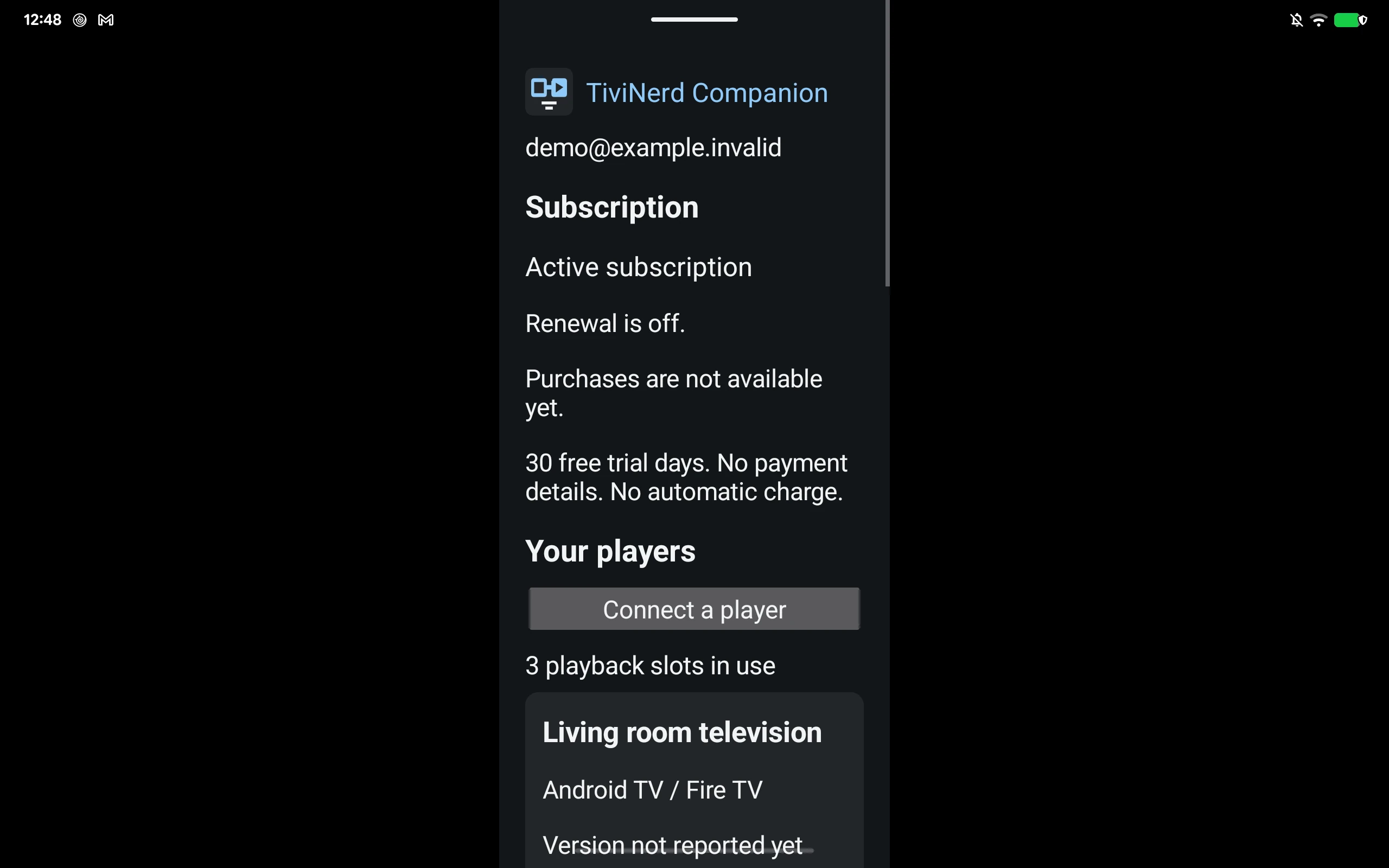
The account service prepares a short-lived QR/browser link and manual player code. This account-link preparation is separate from a paid licence; a pairing receipt is not proof of payment.
The central service can prepare a once-per-verified-account 30-day free trial, without payment details or automatic charging. Real store products and checkout require separate approval before launch.
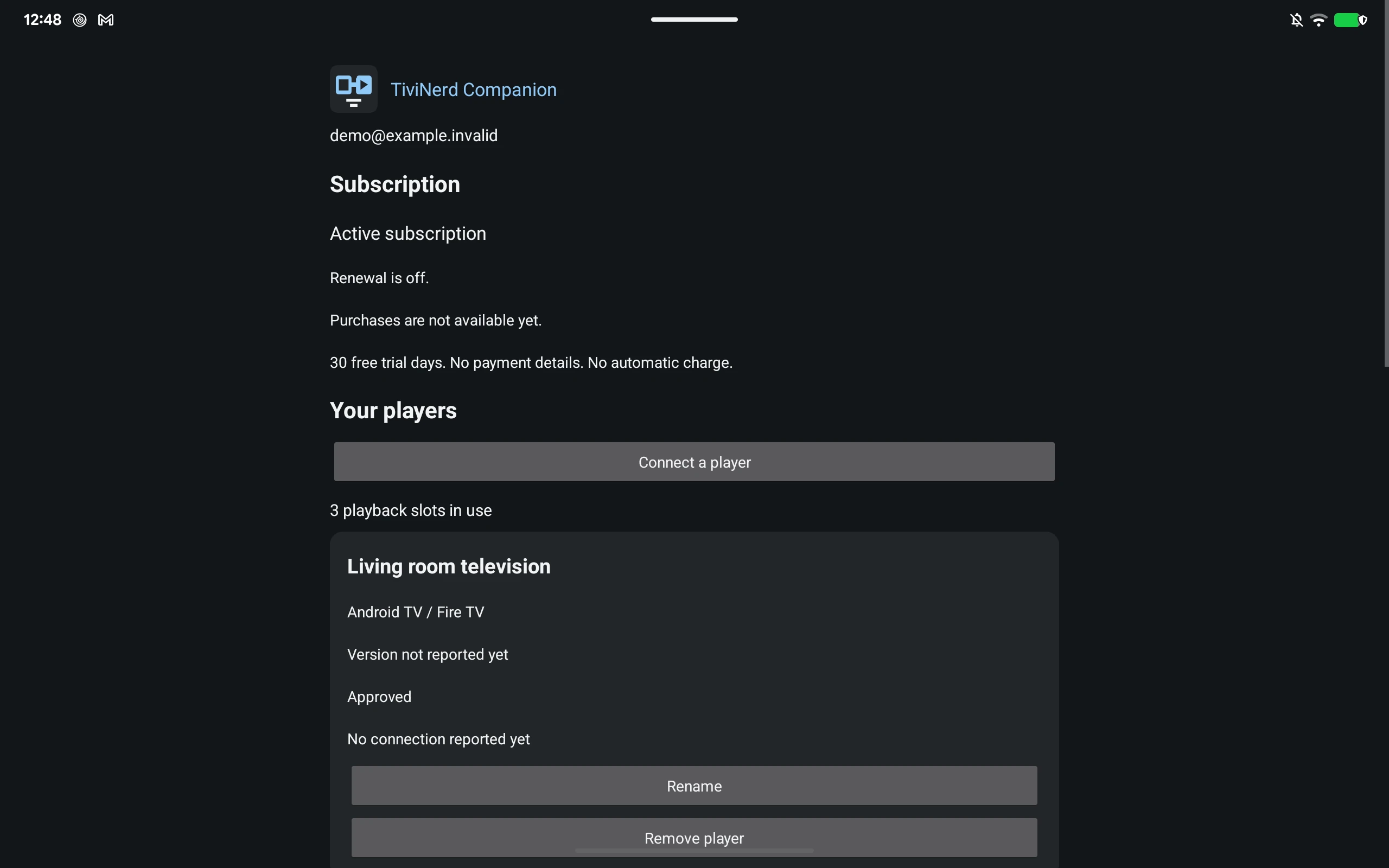
- Choose Connect a player and enter the code shown on that player.
- Review the device name, platform and account. Confirm only your own request.
- Rename a linked player to make it recognisable. Remove a lost player to revoke its account link; its sources and settings stay on the device.
- Under Management sessions, sign out a lost Companion without signing out every player or family profile.
- A full device list needs an available slot before a new player can be approved.
- Offline revocation takes effect when the device checks again or its existing limited authorization expires.
Enter sources and review a support report
Open household settings from Companion to use your own Sync dashboard in the browser. Its normal household login and administrator rights still apply. Source credentials stay in that household's protected source store; they are not sent to the purchase-account service.
Use the dashboard's Sources page to enter an address on your phone and sync it to approved players. Each player downloads its own catalogue and programme guide.
A support report can be exported from the player as JSON, or its short support QR text can be shared to Companion. Choose Open a diagnostic report to review the allowlisted summary. Only a second explicit Share action opens Android's destination chooser. There is no automatic upload or configured central report inbox.
- The summary excludes source addresses, usernames, passwords, arbitrary provider errors and personal device names.
- Closing the report does not queue an upload. Large or malformed files are rejected.