
Connect a source
Dispatcharr
Connect to a Dispatcharr server and keep server-side processing separate from the player.
Applies to 0.74 development preview; capture versions are stated below each illustration · English guide
What you need
Use the base address of your Dispatcharr server, including its port or reverse-proxy path. Do not enter an individual channel URL as the server address.
Use a Dispatcharr account with the rights you need. The player checks supported native API capabilities; a connection test is not proof that every upstream stream is available.
The requested TS or fMP4 delivery format is different from Dispatcharr choosing the upstream input or processing profile. A source switch must keep these separate.
Set up the source
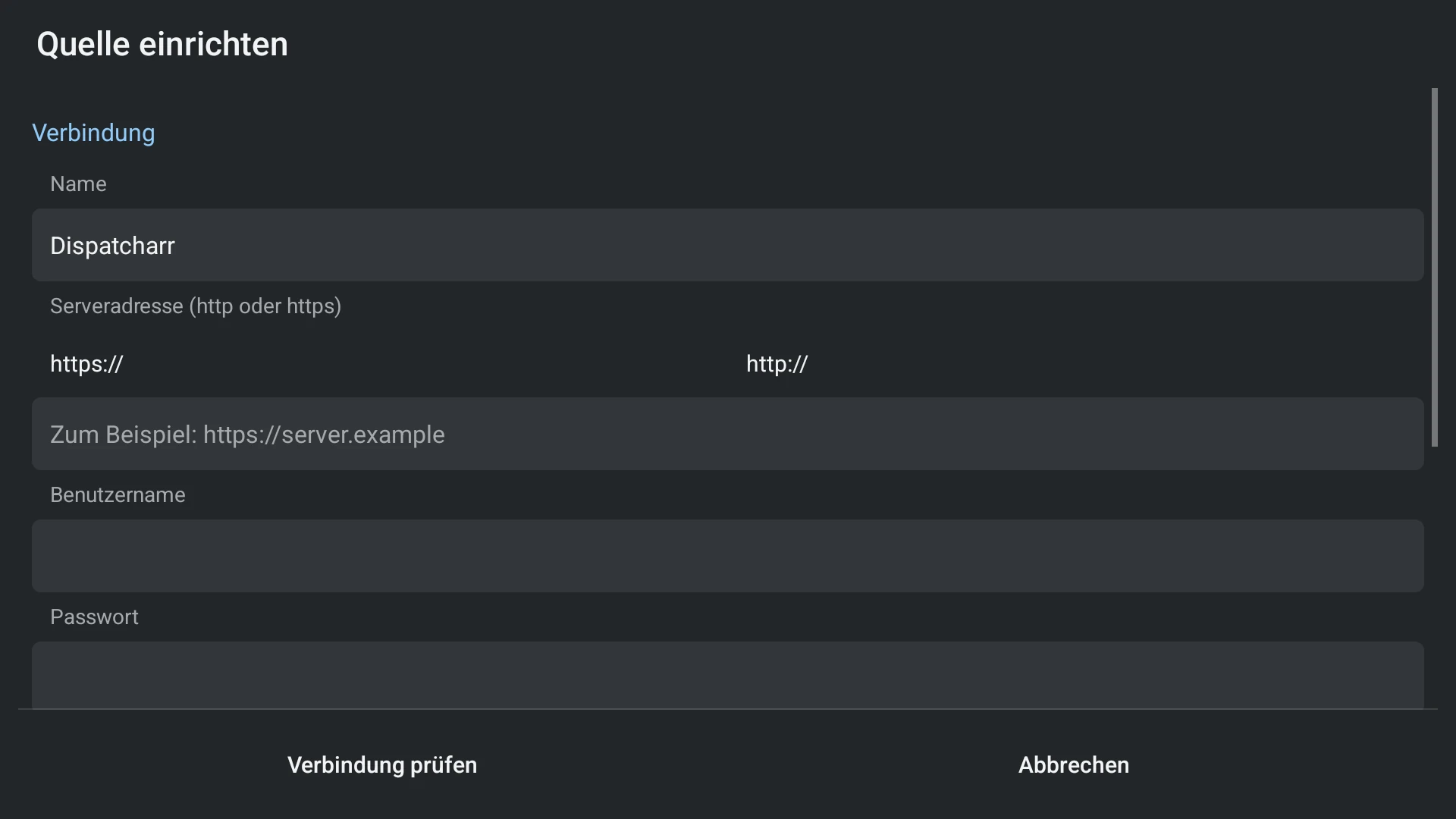
- Open Settings > Sources > Add source and choose Dispatcharr.
- Enter the base address and username/password. Use an advanced API-key route only if it is the route your server administrator supplied.
- Choose the supported Live TV, Movies and Series areas you want. Check the connection, then save and finish the selected setup.
- In the saved source, configure groups, guide assignments and updates. Configure the recording destination separately.
Capabilities and limits
- Live TV uses the native source where supported. Films and series depend on the server catalogue exposed to this account.
- The displayed server exit IP describes the server route, where the API provides it. It does not establish that a VPN is on or off.
- A server-side input change is distinct from changing a channel in the app. Error details help identify a failed delivery without assigning blame from an HTTP status alone.